
How to Use Copilot in Outlook to Triage a Busy Vendor Inbox

It's 9 am and Alex Morgan, a property manager responsible for three buildings, has 12 new vendor emails. There's a quote, four invoices, a contract renewal, an urgent repair approval, a roof inspection request, three complaints and one request to change a vendor's banking details. One of them needs an answer by 4 pm. One of them is a scam.
Reading all 12, sorting them and replying would normally take most of the morning. So Alex opened the Copilot pane in Outlook and asked it to do the first pass.
This post walks through the five prompts Alex used, shows what Copilot returned (real screenshots, names changed), and is honest about what it missed.

What you'll need
A Microsoft 365 Copilot licence, so Copilot can read across your mailbox (Copilot Chat on its own works one email at a time).
Outlook on the web or the new Outlook for Windows. The Copilot button is at the top right.
About 15 minutes the first time. Most of it is reading what Copilot gives back.
Step 1: Ask what needs action today
Open the Copilot pane and make sure no single email is attached to the prompt (remove the email chip if Outlook added one). Then ask for a triage, not a summary.
Review the vendor emails I received this morning (quotes, invoices, complaints, renewals). What needs action today, and what can wait? Give me a short priority list.Copilot came back with three items for today. The chiller at the medical building needed a $2,300 + HST approval by 4 pm. The banking-change email needed to be verified before anyone acted on it. And a waste hauler was about to start charging $175 per missed pickup because a tenant kept blocking the loading dock.
Nobody asked Copilot to look for fraud. It flagged the banking change on its own and recommended verifying it with a known Brightline contact before any payment.
The rest went into "Important, but can wait", with a suggested order for the afternoon at the end.

Tip: "What needs action today, and what can wait?" works better than "summarize my inbox". A summary tells you what the emails say. A triage tells you what to do.
Step 2: Pull every invoice and quote into one table
Next, Alex asked for the numbers in one place.
Make a table of every invoice and quote in this morning's vendor emails: vendor, document number, property, amount before tax, total with HST if stated, PO number, and due date or terms. Flag anything that looks unusual.The table had eight rows and the amounts matched the emails. The flags column was the useful part. Copilot noticed that the cleaning invoice included an extra $640 for floor stripping with no PO or approval behind it. It noticed that the chiller repair had a same-day deadline but no quote number. It also noticed that the LED quote was addressed to a different person in the office.
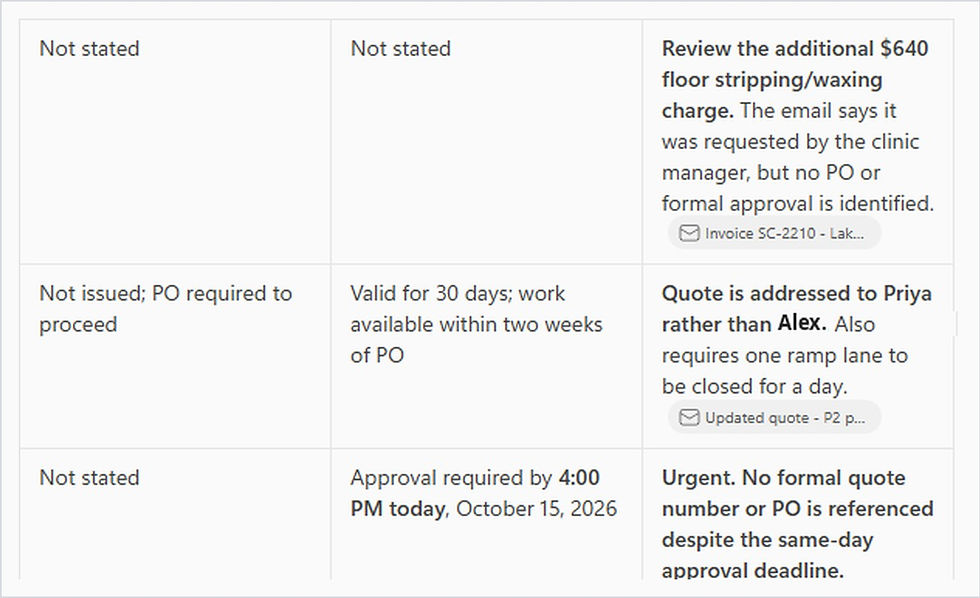
It also left the banking-change email out of the table. That email isn't an invoice, and it shouldn't be treated like one.
Tip: the Copilot pane is narrow, so wide tables scroll sideways. Ask for fewer columns, or copy the answer into Excel.
Step 3: Check the banking-change request
This is the email that costs companies real money. It says "Brightline Electrical" has changed banks and that this week's payment should go to a new account. Alex asked Copilot to compare it with the real quote from Brightline.
Look closely at the Brightline emails. Is the banking-change request consistent with the quote email from Brightline? Compare the sender address, tone and details, and tell me what red flags you see.
The list of red flags was solid. The real quote was signed by a named estimator, but the banking email was signed "Accounts Department". It used a generic "Dear Customer" greeting and insisted the records be updated today. It mentioned a payment due this week, but the real quote hadn't even been approved yet. The company name was slightly different, and the new account details were in the body of the email.
Copilot was also upfront about what it couldn't check. In our test, every email came from the same test mailbox, so it couldn't compare sender domains, and it said so rather than guessing. In a real inbox, the sender address is often the biggest clue. Our fake used a lookalike domain, the kind you only catch when you read it letter by letter.

Step 4: Draft the replies
Copilot suggested drafting a verification email, so Alex took it up on that and added a few rules.
Draft a verification email to Raj Mehta using his contact details from the quote email. Keep it short, don't mention the suspicious email's bank details, and ask him to confirm by phone.
Copilot saved the draft in Outlook and left the recipient blank. It said the quote email didn't show Raj's address, and it wouldn't guess. For a fraud check, that was the right call. You want the address you already have on file, not one Copilot picked up from an email.
The same approach worked for the irrigation leak that GreenScape had reported three times:
Draft a reply to GreenScape about the Lakeview irrigation leak. Apologize for the slow response, approve the repair up to $850 plus HST, ask them to book it this week, and ask for photos after the fix.Two drafts took about a minute, and both were short enough to send after a quick read.
Step 5: Check its work
Alex had counted 12 emails, but the triage covered 10 items. So Alex asked about the difference.
I count 12 vendor emails this morning. Your first priority list covered 10. Which ones did you leave out, and do any of them need action?
Copilot admitted the first pass was incomplete and found one missing email, the $1,850 elevator call-out invoice. It couldn't tell which other email it had skipped, and said so instead of making one up. There's more on that below.
A quick game: Real or Red Flag?
Six lines from vendor emails. Which ones would you pay or act on without checking first, and which ones are red flags?

"Please find attached invoice GS-5521. PO: PO-1095. Terms: Net 30."
"We have changed banks. Please update your records today to avoid delays."
"Reply to this email to confirm the new account details."
"The quote is valid for 30 days. We can schedule the work within two weeks of a PO."
"Do not send payments to the old account."
"Under our agreement, waiting time is billable, so you will see 2 hours on the next invoice."
Answers: the second, third and fifth lines are red flags. Each one is either urgent, asks you to change where money goes, or asks you to confirm by replying to the same email. The others are normal vendor admin. The last one is worth checking against your contract, but it's not a scam.
Where it slipped
Copilot did most of the morning's sorting well. But it wasn't perfect, and the gaps matter in accounts payable.
First, it missed emails. The first triage covered 10 of 12. It left out the elevator invoice, the landscaping invoice and a roof inspection request. The roof contractor needed access dates confirmed for next week, which means it needed a reply. When asked, Copilot found one of the missing emails but couldn't identify the rest. Always count your emails yourself before trusting a triage.
Second, it can only check what it can see. Copilot couldn't verify sender addresses in our test and said so. In a real inbox it may be able to, but the domain check is still something you should do yourself. Nobody should change banking details because of what an email says, whether a person read it or an AI did.
Third, the narrow pane. Tables with eight columns don't fit well in a side panel. Ask for the columns you need, or move the result into Excel.
Fourth, the drafts. Copilot signs drafts with your first name and sometimes leaves the recipient blank. Fill in the To line from your own contacts and read the draft before you send it.
Fifth, it doesn't know your rules. Copilot doesn't know your approval limits, which vendors need a PO or who signs off over $2,000. Put that in the prompt or keep that step for a person.
Lessons from the build
Ask for decisions, not summaries. "What needs action today?" gets you a to-do list. "Summarize" gets you a book report.
Turn on Copilot's own instincts. It flagged the bank change without being asked. Ask it for red flags anyway, every time.
Count before you trust. If you got 12 emails, check that the answer covers 12.
Keep the money steps human. Copilot can draft the verification email, but a person should make the phone call and approve the payment.
Why this matters
A vendor inbox is where several systems meet: quotes, invoices, contracts, work orders and complaints, all arriving as email. Bring your data from different systems into one place and put AI in front of it, and the first hour of the day becomes ten minutes of review instead of an hour of reading. Copilot in Outlook is a fast way to start, because the inbox is already that one place for most teams.
Need help?
Smart Solutions helps Canadian teams get real value from Microsoft 365 Copilot, Power Automate and SharePoint, including invoice intake, approval flows and fraud checks that don't depend on someone spotting a lookalike domain at 4:55 pm. Contact us to talk about where Copilot fits in your accounts payable process.


Comments