
Build a Copilot Studio Agent That Handles Your Facilities Inbox (Part B)
In Part A we turned facility emails into SharePoint service requests with a Power Automate flow and a single AI prompt. It worked well for new requests, but real inboxes are messier than that:
A tenant replies to your "please send the building and floor" email, and the flow creates a second ticket instead of updating the first.
Three people report the same leaking tap, and you end up with three tickets.
Someone writes in a panic, and the reply has to strike the right tone.
A flow can handle all of that, but only with a branch for every case. In Part B we hand the judgement to a Copilot Studio agent instead. The agent reads each email, decides whether it's a new request, a reply or a duplicate, works with the SharePoint list directly, and writes the reply. The workflow around it shrinks to three steps.
By the end, the same Service Requests list fills itself in, and the tickets stay clean:

What you'll need
Everything from Part A: the Facilities Desk shared mailbox, the Service Requests list and the Sites and Buildings lists.
Copilot Studio in the same environment. Agents and workflows run on Copilot Credits, so you need prepaid capacity or a pay-as-you-go billing plan.
Turn off the Part A flow before you switch this on, so each email is only handled once.
How it fits together
There are two pieces:
The agent holds the instructions and the SharePoint tools. It does the thinking.
A workflow listens to the shared mailbox, hands each email to the agent, and sends the reply the agent writes from the facilities address.
Keeping the email sending in the workflow is deliberate. The agent never emails anyone directly. It returns a reply, and a fixed step sends it from the shared mailbox.
Step 1: Create the agent
In Copilot Studio, go to Agents > New agent and name it Facilities Desk Agent. The instructions do most of the work, and they read like a job description for a new facilities coordinator:
Who it is and what it receives: one email from the shared mailbox, with sender, subject, received time and body.
What data it can use: the Sites, Buildings and Service Requests lists, and which columns matter.
The steps for every email: check whether it's a reply to an existing ticket, otherwise extract the request, set the priority, check for duplicates, then create the item.
What to return: a small JSON object with the action taken, the ticket number, the priority, a reply subject and the reply as HTML.

The three rules that made the biggest difference:
Replies: if the subject contains a ticket number like FR-1004, update that item and don't create a new one.
Duplicates: look for open items at the same site, with the same category and a similar location, from the last 48 hours. If there's a match, add a note to that ticket instead of creating another.
Honesty: never invent details that aren't in the email or the lists, and never promise that someone is on the way or give a response time.
Step 2: Give it SharePoint tools
Under Tools, add three SharePoint connector actions:
Read list items (Get items): the site is fixed, and the agent chooses the list and filter.
Create service request (Create item): the site and the Service Requests list are fixed, and the agent fills in the columns.
Update service request (Update item): the same, plus the item ID.
Rename each tool so the agent knows what it's for. Set the site address and list name to Custom values, so the agent can only ever touch the lists you chose. Set Authentication to Shared account, so the agent runs under the facilities connection when it's triggered automatically, with nobody signed in.
A tip from our build: we first tried the new SharePoint MCP server. It refused every call with a licence error, because it needs a Microsoft 365 Copilot licence. The classic SharePoint connector actions work with standard licensing.
Step 3: Test it in Preview
Before connecting the mailbox, paste an email into the Preview chat. We sent Dr. Cho's reply to FR-1004, the AC ticket from Part A that was waiting for a location:
From: Dr. Hannah Cho | Subject: RE: [FR-1004] AC not working | Body: Hi, sorry, we're at Lakeview Medical Plaza, Main Building, 2nd floor, the waiting room of Suite 210.The agent found FR-1004, filled in the site, building, floor and location, cleared the missing details, moved the status from Needs review to New, and wrote a reply confirming what changed:
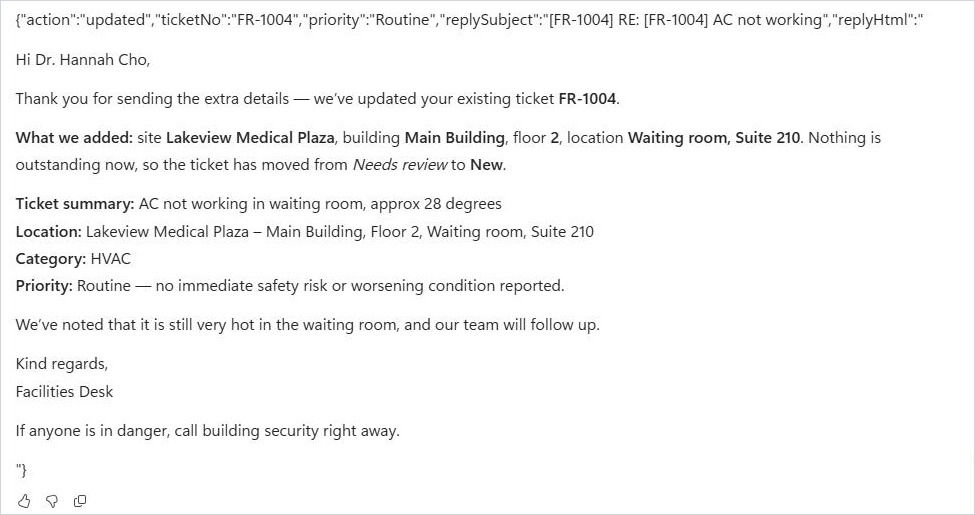
Preview is also where we spotted a small issue: the reply subject repeated the ticket number. One extra line in the instructions fixed it. Testing a few real-looking emails in Preview is the cheapest way to tune an agent.
Step 4: Build the workflow
In Copilot Studio, go to Workflows > New workflow. It takes three nodes:
Trigger: Office 365 Outlook > When a new email arrives in a shared mailbox, pointed at the facilities address.
Agent: choose Facilities Desk Agent. The message is the sender, subject, received time and body from the trigger. Set Output to Structured output with five text properties: action, ticketNo, priority, replySubject and replyHtml.
Send an email from a shared mailbox: To is the original sender, Subject is replySubject and Body is replyHtml.

One gotcha: when you pick the Inbox folder from the list, the designer stores the Inbox of your own mailbox, not the shared one. The trigger then fails every minute with NotFound. Switch Folder to Enter custom value and type Inbox.
Publish the agent and then the workflow. With no channel added, the agent doesn't appear in Teams or chat. It only runs when the workflow calls it.
Step 5: Test with real emails
We sent two new emails to the shared mailbox.
The first was a second report of the leaking tap from Part A, from a different tenant. The agent matched it to FR-1001, added the new report to that ticket, and told the sender it was already being handled:

The second said a patient was stuck in the Main Building elevator at Lakeview Medical Plaza. The agent created FR-1005 as an Emergency, matched the site and building, and replied straight away:

Read that reply carefully, though. Our first version said "we are dispatching help now", and nothing in this workflow dispatches anyone. That's why we added the honesty rule above. An AI reply is a promise made in your company's name, so it should only describe what has actually happened.
Agent or flow?
After building both, here's our take:
Use the Part A flow when every email follows the same path: extract, log, reply. It's predictable, easy to debug and cheap.
Use the agent when the next step depends on what's already in the list: replies, duplicates, follow-ups and anything else that needs a look before acting.
Mix them. Keep fixed steps such as sending email and emergency alerts in the workflow, and let the agent make the decisions.
What it costs
The agent uses more Copilot Credits per email than the single prompt in Part A, because it reasons and calls tools several times, for example a lookup, a duplicate check and then a create or update. Check the run history in your billing report for the first week before turning it on for a busy mailbox.
Ideas to take it further
Escalate emergencies: add an If/Else after the agent node that checks whether priority is Emergency, and posts to Teams or calls the on-call phone line.
Add a human check: send Needs review tickets to a facilities coordinator with a Human review node before any reply goes out.
Teach it your vendors: give the agent a Vendors list so it can suggest who to dispatch for each category and site.
Close the loop: when a ticket is set to Resolved, send the requester a short "fixed" email with a one-click rating.
Why this matters
Most of a facilities coordinator's day goes on the same judgement calls: is this new, have we seen it before, is it urgent, what's missing? A well-instructed agent makes those calls in seconds, writes them down in a list you already own, and leaves your team the work only people can do.
That's the pattern we keep coming back to: bring the data from your inbox and your property lists into one place, put AI in front of it, and keep people in charge of the decisions that matter.
Need help?
Smart Solutions builds Copilot Studio agents, Power Automate flows and Power Apps for Canadian property and facilities teams. Contact us to talk about what you'd like to automate. Next up in Part C: asking Microsoft 365 Copilot questions about your service requests.


Comments