
Year-End Budget Prep with Copilot in Excel: Build Your 2027 Operating Budget

Every November, property managers do the same exercise. Take ten months of actuals, guess the last two, add the contract increases nobody wants to talk about, and turn it all into a budget the owner will sign. It usually takes a week of spreadsheets.
This year Alex Morgan, a property manager responsible for three buildings, did the first draft with Copilot in Excel in one afternoon. This post shows the five prompts Alex used, the numbers Copilot produced (we checked every total by hand, and they matched), and the places where a person still had to step in.

What you'll need for a Copilot in Excel budget
A Microsoft 365 Copilot licence. Copilot in Excel is included.
Excel for the web or the desktop app, with the workbook saved in OneDrive or SharePoint.
Your data in Excel tables with clear column names. Copilot works much better with tables than with loose ranges.
Step 1: Set up the workbook
Alex's workbook, Operating Budget 2027, has four tables:
Actuals 2026: property, GL code, category, month and amount, January to October. 390 rows.
Budget 2026: the same columns, all twelve months, including seasonal amounts for snow removal and landscaping.
Contracts 2027: each known increase for next year: vendor, category, property, change percentage, effective date and a note. For example, the HVAC contractor's renewal at +7.5%, insurance at +8% from July and a property tax reassessment at one building.
Properties: rentable square feet for each building, so Copilot can work out cost per square foot.
If you read our post on triaging a vendor inbox with Copilot in Outlook, you'll recognize the HVAC renewal. That's where the 7.5% came from.
Step 2: Forecast the full year
Open Copilot in Excel and ask for the year-end forecast. Be specific about the method, because there are several reasonable ones.
Create a new sheet called 2026 Forecast. For each property and category, forecast the full 2026 year: use the actuals for January to October and the 2026 budget for November and December. Show the 2026 annual budget next to it, the variance in dollars and percent, and a total row. Sort by the largest dollar variance.Copilot built a formatted sheet with all 39 property and category rows, formulas rather than pasted values, and a colour scale on the variance. The portfolio is forecast at $2,642,525, which is $55,325 (2.1%) over the 2026 budget.
The top of the list told the story of the year. Snow removal at the distribution centre ran $18,907 over budget after a heavy winter. Repairs at the office tower ran $18,675 over. Elevator maintenance at the medical building ran $5,926 over, which is 41% of its budget.
Step 3: Draft the 2027 budget
Next, Alex asked Copilot to roll the forecast forward using the Contracts table.
Now create a sheet called 2027 Draft Budget. Start from the 2026 forecast for each property and category, then apply the increases in the Contracts 2027 table. If an increase starts part way through 2027, only apply it from the effective date. Use 3% for any category with no contract change. Show 2026 forecast, 2027 draft, the change in dollars and percent, the cost per rentable square foot from the Properties table, and a short note on the assumption used for each row.
The proration was right. Security went up 3% instead of 4%, because the increase only starts in April. Insurance went up 4% instead of 8%, because the renewal is in July. Every row had a note saying which contract or default it used. The first draft came to $2,741,651, a 3.8% increase over the forecast, or $5.26 per square foot.
It looked finished. It wasn't.
Step 4: Ask Copilot to check its own baseline
A budget built on last year's actuals carries last year's surprises into next year. So before sending anything, Alex asked Copilot to look for them.
Before I send this to the owner: check the monthly actuals for one-off spikes that probably should not be carried into 2027, and tell me which rows of the 2027 draft they affect and by how much. Also, 2026 had a heavy winter. Should snow removal be based on the forecast or the 2026 budget? Don't change the sheet yet, just explain.
Copilot found three spikes in the monthly data: a May repair at the office tower, two elevator charges at the medical building in July and October, and an October repair there too. Together they added $27,814 to the 2027 draft. It also recommended basing snow removal on the 2026 budget, not the forecast, so that one hard winter doesn't become next year's normal.

Copilot only had amounts, not invoice descriptions, so it said to check the underlying invoices before removing anything. That's the right advice. In our case they were a garage membrane repair, an elevator door operator replacement, an emergency elevator call-out and a chiller fan motor. All four were one-time costs.
Step 5: Apply the changes and write the owner summary
Good, apply both: remove the one-off spikes from those three rows and base snow removal on the 2026 budget plus 3%. Update the assumption notes. Then add a sheet called Owner Summary with one row per property: 2026 budget, 2026 forecast, 2027 draft, change vs 2026 budget, and cost per square foot. Add a clustered column chart and a short narrative for the owner (under 150 words) explaining the main drivers.
The normalized draft is $2,684,640. That's $97,440 (3.8%) above the 2026 budget and $5.15 per square foot. The commentary named the real drivers: electricity (+$32.9K), property tax (+$23.5K) and insurance (+$12.4K). It also said that $57K of abnormal 2026 costs had been kept out of the baseline. We checked those driver amounts against the workbook, and they were correct.
The chart took three tries. More on that below.

A quick game: Keep It or Cut It?
Six 2026 costs. Which belong in the 2027 baseline, and which should come out?
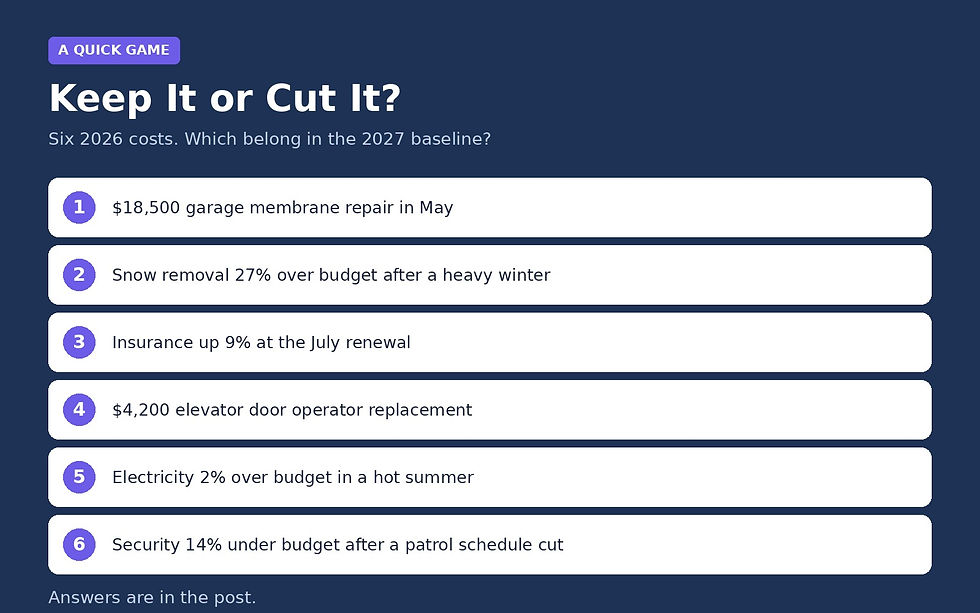
A $18,500 garage membrane repair in May.
Snow removal 27% over budget after a heavy winter.
Insurance up 9% at the July renewal.
A $4,200 elevator door operator replacement.
Electricity 2% over budget in a hot summer.
Security 14% under budget after a patrol schedule cut.
Answers: cut the first and fourth, because they are one-time repairs. Normalize the second, so a normal winter is the baseline. Keep the third, because insurance doesn't go back down. Keep the fifth, because a 2% swing is within normal weather variation and rates are going up anyway. The sixth is a decision, not a calculation: keep the lower amount only if the schedule cut is permanent.
Where it slipped
Copilot did most of the work and got every total right. But there were gaps, and in a budget, gaps cost money.
First, it did what we asked, not what we meant. Our first instruction said to start from the forecast, so it carried a heavy winter and $27K of one-time repairs straight into 2027. It found them as soon as we asked, but it didn't raise them on its own. Always ask the "what shouldn't be in here?" question yourself.
Second, it missed one. The water leak at the medical building added three months of extra water use in the summer and pushed water costs there 13% over budget for the year. That's also a one-off, but Copilot didn't flag it. Spikes spread over several months are harder to spot than a single big month.
Third, it applied rules literally. Our Contracts table only had a property tax change for one building, so the other two got the 3% default. Property tax doesn't work like that. Make sure the table reflects what you actually know.
Fourth, the chart. The first version labelled every bar $0.0M. When asked to fix it, Copilot said the labels now showed amounts like $1,273,400, but the chart showed $1 on every bar. On the third request, when we asked it to check the chart itself, it fixed it. Look at the output, not at the message saying it's done.

Fifth, it only knows what's in the workbook. Copilot couldn't know that the garage repair was a one-time job, or that the owner wants a reserve for the roof next year. The final review of the budget and the call on anything unusual stays with you.
Lessons from the build
Spell out the method. "Actuals to October, budget for November and December" leaves nothing to guess.
Put your assumptions in a table. A Contracts table with effective dates gave Copilot everything it needed to prorate correctly.
Ask for the one-offs. "What shouldn't be carried into next year?" is the most valuable prompt in this post.
Check totals and charts yourself. Copilot's formulas were right. Its description of a chart was not.
Why this matters
A budget pulls together accounts payable, contracts, vendor renewals, utility rates and property data, and most of it lives in different systems. Bring your data from different systems into one place and put AI in front of it, and the first draft takes an afternoon instead of a week. That leaves the week for the conversations that actually need a person: what to defer, what to fund and how to explain it to the owner.
Need help?
Smart Solutions helps Canadian property and facilities teams get real value from Microsoft 365 Copilot, Excel, Power Automate and SharePoint, from clean invoice data to budgets that build themselves. Contact us to talk about your 2027 budget process.


Comments