
How to Extract Invoice Data from Email PDFs into Excel with Power Automate, AI Builder or SharePoint Autofill
If your accounts payable process starts with "open the email, open the PDF, type the numbers into a spreadsheet", you're paying someone to be a very slow photocopier. Every re-typed invoice is a chance for a transposed digit, a missed due date, or a duplicate payment.
Here's how to extract invoice data automatically instead. In this guide we'll build a Power Automate flow that watches your inbox for invoice emails, reads every PDF attachment with AI Builder's prebuilt invoice model, and logs the vendor, invoice number, dates and amounts as a new row in Excel. No templates to train, and no copy-paste.
What you'll need
Microsoft 365 with Outlook and OneDrive for Business (or SharePoint)
Power Automate, plus AI Builder credits in your environment. The Process invoices action is a premium AI Builder feature. Many Power Apps and Power Automate premium licences include some credits, and you can start a free AI Builder trial from the Power Platform admin center. Without credits, the flow saves fine but the AI step fails with "Missing Copilot Credit or AI Builder credit capacity".
An Excel workbook with a table to log invoices into
Step 1: Prepare the invoice log in Excel
Create a workbook (ours is Invoice-Log.xlsx) with a table named InvoiceLog and these columns: Received, Vendor, Invoice Number, Invoice Date, Due Date, Subtotal, Tax, Total and File Name. Format Subtotal, Tax and Total as currency.

For testing we created three sample invoices from made-up vendors. They're ordinary text PDFs, like most accounting systems produce.

Step 2: Create an automated cloud flow
In Power Automate, go to Create > Automated cloud flow. Name it Invoice Emails to Excel, search for the trigger When a new email arrives (V3) from Office 365 Outlook, select it and click Create.

Step 3: Only pick up invoice emails with attachments
Open the trigger and set these advanced parameters:
Include Attachments: Yes (otherwise the flow can't read the PDF)
Subject Filter: Invoice
Only with Attachments: Yes
Folder: Inbox

Tip: a dedicated mailbox such as ap@yourcompany.com, or an Outlook rule that moves invoices into their own folder, works even better than a subject filter.
Step 4: Skip anything that isn't a PDF
Email signatures, logos and screenshots all arrive as attachments too, and every one you send to AI Builder costs credits. Add a Filter array action, rename it PDF attachments only, set From to the trigger's Attachments, then choose Edit in advanced mode and enter:
@endsWith(toLower(item()?['name']), '.pdf')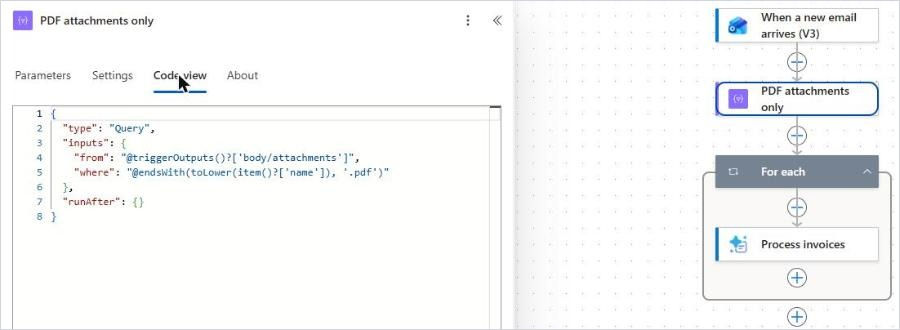
Step 5: Read each invoice with AI Builder
Add the AI Builder action Process invoices (older tutorials call it "Extract information from invoices"). For Invoice file, pick Attachments Content from the dynamic content. Power Automate wraps it in a For each loop automatically. Open the For each and make sure its input is the Body of PDF attachments only, not the raw attachments, so the loop only runs on PDFs.

The prebuilt model needs no training. It returns dozens of fields, including vendor name and address, invoice ID, invoice and due dates, subtotal, tax, total, and line items, each with a confidence score.
Step 6: Add a row to the Excel log
Inside the loop, add Add a row into a table (Excel Online Business), rename it Log invoice in Excel, and point it at Invoice-Log.xlsx and the InvoiceLog table. Then map the columns:
Received: formatDateTime(convertFromUtc(triggerOutputs()?['body/receivedDateTime'], 'Eastern Standard Time'), 'yyyy-MM-dd HH:mm')
Vendor: Vendor name
Invoice Number: Invoice ID
Invoice Date: Invoice date (date)
Due Date: Due date (date)
Subtotal: Subtotal (number)
Tax: Total tax (number)
Total: Invoice total (number)
File Name: items('For_each')?['name']

Use the "(date)" and "(number)" versions of the AI Builder outputs, not the "(text)" ones. They come back already formatted (2026-09-21, 1016.93), so Excel sorts and totals them correctly.
Step 7: Save and test
Save the flow, choose Test > Manually, then send yourself an email with "Invoice" in the subject and a PDF invoice attached.

Each email becomes one row per PDF. For our sample, Greenline Office Supply, the row should read: vendor Greenline Office Supply Ltd., invoice INV-24817, invoice date 2026-09-21, due date 2026-10-21, subtotal $899.94, tax $116.99, total $1,016.93. An email with two invoices attached adds two rows.
A note from our own test: this demo environment had no AI Builder credits, so our run stopped at Process invoices with "Missing Copilot Credit or AI Builder credit capacity." If you see that message, the flow itself is fine. Activate a trial or assign credits to the environment and run it again.
Option B: extract invoice data with SharePoint autofill columns
If you'd rather not build the AI step in Power Automate, Microsoft 365 has a lower-code alternative: autofill columns in a SharePoint document library. You add a column, write a plain-English prompt for it, and every PDF uploaded to the library gets that column filled in automatically by generative AI.
Turn it on: autofill runs on Microsoft 365 pay-as-you-go billing, so a Microsoft 365 admin links an Azure subscription and enables it for your sites first.
Create an Invoices library on a SharePoint site (not a subsite).
Add a column per field (Vendor as text, Invoice Total as currency, Due Date as date and time), then open the column's autofill settings and write a prompt such as "What is the total amount due on this invoice? Return only the number."
Feed it: upload PDFs by hand, or change the flow above so it saves each PDF attachment into the library with SharePoint's Create file action instead of calling AI Builder.
Good fit if your team already works in SharePoint and wants to adjust prompts without editing a flow. Keep in mind it's billed per use, works best under 10 autofill columns per library and files under 65 pages, and a changed file has to be reprocessed manually. Whichever option you pick, you can still use Power Automate afterwards to copy the values into Excel or trigger approvals.
Make it production-ready
Check confidence: add a Condition on "Confidence of invoice total". Below 0.8? Flag the row for review or email AP instead of logging it silently.
Stop duplicates: before adding the row, use Filter array on the existing log (or a Get a row lookup) to check whether this vendor and invoice number already exist.
File the PDF: save the attachment to a SharePoint library named by vendor and month, and put the link in the log.
Route for approval: add Start and wait for an approval for invoices above a set amount.
Keep the inbox clean: move the processed email to an "Invoices, logged" folder.
The fun part: accounts payable bingo
Mark every square you've seen this year:
An invoice sent as a photo of a printout.
The same invoice, sent three times, "just in case".
A PDF named "scan0001.pdf".
"Please see attached" with nothing attached.
A vendor who changed banks by email. (Always call them to confirm.)
Three or more? Your AP team deserves this flow, and possibly a long weekend.
Beyond the spreadsheet
Automating data entry is a great first step. If you'd rather have purchase orders, vendor records, approvals and invoices in one place, take a look at ProcuraCloud, our Canadian-built procurement and business management platform for small and mid-sized businesses.
Want a flow like this built and tuned for your AP process, including approvals, SharePoint filing and ERP integration? Contact Smart Solutions and we'll help you automate it.


Comments