
How to Build Automatic Lease Expiry Reminders with Power Automate and Excel (Step-by-Step)
Missing a lease expiry is one of the most expensive mistakes in commercial real estate. A tenant that isn't called at 12 months often signs somewhere else at 6. Most brokers, landlords and property managers track expiries in a spreadsheet, and the spreadsheet only helps if somebody opens it.
In this guide we'll build a Power Automate flow that reads your lease tracker every morning and emails you when any lease is exactly 365, 180 or 90 days from expiry. It takes about 20 minutes, uses only Excel and Outlook, and needs no premium licence. The same pattern works for contract renewals, software licences, insurance certificates or any date you can't afford to miss.
What you'll need
Microsoft 365 with Outlook and OneDrive for Business (or SharePoint)
Access to Power Automate (make.powerautomate.com)
An Excel workbook with your leases formatted as a table
Step 1: Set up the lease tracker in Excel
Create a workbook (ours is Lease-Tracker.xlsx) with one row per lease and these columns: Lease ID, Tenant, Property, Unit, Size (SF), Expiry Date and Use. Select the data and press Ctrl+T to format it as a table, then name the table Leases (Table Design > Table Name). Power Automate can only read Excel data that sits inside a named table.

Tip: keep Expiry Date as a real date column, not text. The flow does date math on it.
Step 2: Create a scheduled cloud flow
In Power Automate, go to Create and choose Scheduled cloud flow.

Name it Lease Expiry Reminders, set it to repeat every 1 day starting tomorrow at 8:00 AM, and click Create.

Step 3: Set the time zone on the Recurrence trigger
Open the Recurrence trigger and set Time zone to (UTC-05:00) Eastern Time (US & Canada), or your own zone. Set At these hours to 8 and At these minutes to 0. The preview should read "Runs at 8:00 every day". Without a time zone, the flow runs on UTC and "today" can be off by a day.

Step 4: Capture today's date
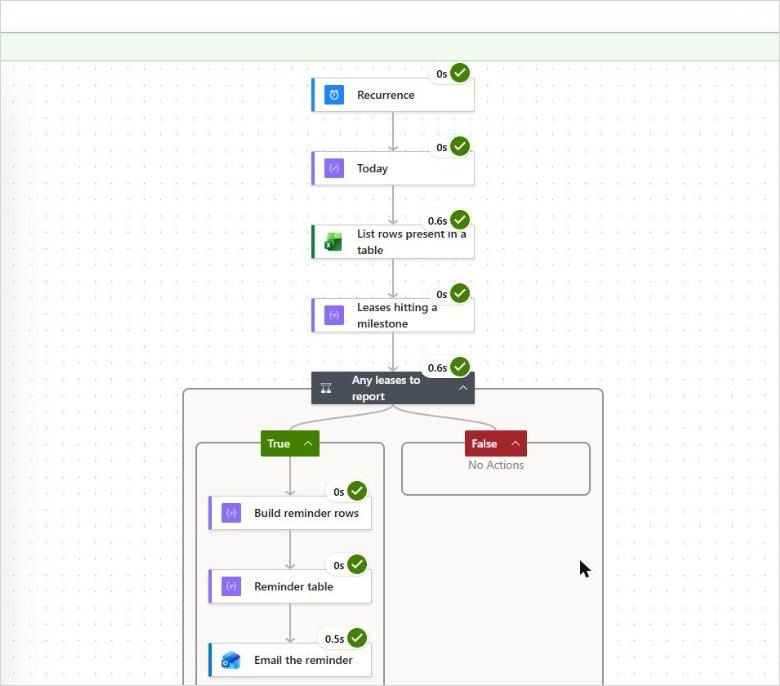
Add a Compose action and rename it Today. In Inputs, open the expression editor (fx) and enter:
formatDateTime(convertFromUtc(utcNow(), 'Eastern Standard Time'), 'yyyy-MM-dd')
This gives you a clean date like 2026-09-27 in your local time, which every later step compares against.
Step 5: Read the leases from Excel
Add List rows present in a table (Excel Online Business). Set Location to OneDrive for Business, Document Library to OneDrive, File to /Blog Demos/Lease-Tracker.xlsx (your own path) and Table to Leases.
Then open Advanced parameters and set DateTime Format to ISO 8601. This is the step most people miss: without it, Excel returns dates as serial numbers like 46382 and every date calculation breaks.

Note: this action returns 256 rows by default. If your tracker is bigger, turn on Pagination in the action's Settings.
Step 6: Keep only the leases that hit a milestone today
Add a Filter array action and rename it Leases hitting a milestone. Set From to the body/value output of the Excel step. Click Edit in advanced mode and paste:
@contains(createArray(90, 180, 365), div(sub(ticks(item()?['Expiry Date']), ticks(outputs('Today'))), 864000000000))
How it works: ticks() turns each date into a number of 100-nanosecond intervals. Subtracting today from the expiry date and dividing by 864,000,000,000 (the ticks in one day) gives the days left. createArray(90, 180, 365) is your list of milestones, and contains() keeps the row only if its days left is on that list. Want a 30-day reminder too? Add 30 to the array.

Step 7: Only continue when there's something to report
Add a Condition and rename it Any leases to report. On the left, add the expression length(body('Leases_hitting_a_milestone')), choose is greater than, and enter 0 on the right. Everything else goes in the True branch, so you only get an email on days when a lease actually needs attention.

Step 8: Shape the rows for the email
In the True branch, add a Select action and rename it Build reminder rows. Set From to the Body of the Filter array, then add these key and value pairs (use fx for each value):
Tenant: item()?['Tenant']
Property: concat(item()?['Property'], ', ', item()?['Unit'])
Expiry Date: formatDateTime(item()?['Expiry Date'], 'MMM d, yyyy')
Days Left: div(sub(ticks(item()?['Expiry Date']), ticks(outputs('Today'))), 864000000000)
Size (SF): formatNumber(int(item()?['Size (SF)']), '#,##0')

Step 9: Turn it into a table and email it
Add Create HTML table (rename it Reminder table) with From set to the Output of the Select. Then add Send an email (V2), rename it Email the reminder, and set:
To: your email, or your team's shared mailbox
Subject (as an expression): concat('Lease expiry reminders: ', length(body('Leases_hitting_a_milestone')), ' lease(s) hit a milestone today')
Body: switch the editor to code view (the </> button) and paste the HTML below. The style block gives the table a proper header and borders.
<style>table{border-collapse:collapse;font-family:Segoe UI,Arial,sans-serif;font-size:13px}th{background:#1f3b57;color:#ffffff;padding:8px 10px;text-align:left}td{border:1px solid #dde3ea;padding:8px 10px}tr:nth-child(even) td{background:#f4f7fa}</style><p>Good morning,</p><p>These leases reach a 90, 180 or 365-day milestone today. Time to start the renewal conversation.</p>@{body('Reminder_table')}<p>Source: Lease-Tracker.xlsx</p>
Step 10: Save and test
Click Save, then Test > Manually > Run flow. Every step should show a green check.
And here's the email that landed in our inbox. Three of our sample leases were exactly 90, 180 and 365 days out, so all three made the list.

Ideas to take your lease expiry reminders further
Send each reminder to the responsible broker: add a Broker Email column and use Apply to each with a separate email per row.
Post to a Microsoft Teams channel instead of (or as well as) email.
Add 30 or 60 days to the milestone array for final-stretch reminders.
Write a "Last reminded" date back to Excel with Update a row, so you have an audit trail.
Use the same flow for option dates, rent reviews, or insurance certificate expiries.
The fun part: a quick lease-book check
Give yourself a point for every one that sounds familiar:
Your lease tracker has a column called "Notes (IMPORTANT)".
You've found out a tenant was moving from the tenant.
There's a lease expiry on a sticky note somewhere. Possibly on the underside of a keyboard.
"Renewal" in your calendar means you remembered at 11 p.m. the night before.
0 to 1: well-run desk. 2 to 3: this flow will pay for itself this quarter. 4: set it up today, then go find that sticky note.
Outgrowing the spreadsheet?
A flow like this is a great first step, but a spreadsheet still can't tell you who to call, keep your tours, offers and LOIs together, or answer the phone when you're out showing space. That's why we built Frontage, a commercial leasing CRM for Canadian brokers. It imports the expiry list you already keep, surfaces leases at the milestones you choose (3, 6, 9, 12 or 18 months), and turns each one into a deal with one click. Starter is free, with no credit card.
Need help automating your own processes? Smart Solutions builds Power Automate and Power Apps solutions for Canadian businesses. Contact us to talk about what you'd like to automate.


Comments