
Ask Microsoft 365 Copilot About Your Facility Service Requests (Part C)
In Part A a Power Automate flow and an AI prompt turned facility emails into SharePoint service requests. In Part B a Copilot Studio agent took over the inbox and handled replies, duplicates and emergencies. The Service Requests list now fills itself in.
That leaves the last question every facilities manager asks: what does all this tell me? Which emergencies are still open, what's waiting on missing details, and what came in this week at each site?
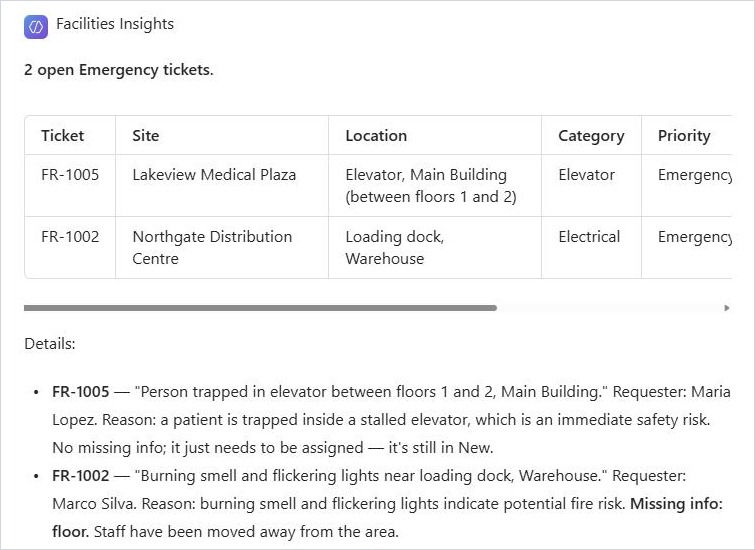
In Part C we answer those questions in plain English, right inside Microsoft 365 Copilot:
Why not just ask Copilot?
That was our first try. We opened Copilot Chat, pasted the link to the list and asked about open emergencies. Copilot found the site but couldn't read the rows. A SharePoint list isn't a document, so Copilot's search doesn't see its items the way it sees a Word file or a PDF.
The fix is a small agent with one job: read the Service Requests list and answer questions about it. You build it once in Copilot Studio, and it shows up in Microsoft 365 Copilot and Teams for everyone you share it with.
What you'll need
The Service Requests list from Part A, with tickets in it.
Copilot Studio in the same environment.
Microsoft 365 Copilot. People with a Microsoft 365 Copilot licence can use the agent as part of their licence; for everyone else, usage is billed as Copilot Credits from your capacity or pay-as-you-go plan.
Step 1: Create the agent
In Copilot Studio, go to Agents > New agent and name it Facilities Insights. The instructions are short, and they tell the agent three things:
Data: use the Read service requests tool, which columns matter (TicketNo, site, building, location, category, priority, status, missing info), and that "open" means anything not Resolved.
How to answer: always read the list first, lead with a count or a short list, use a compact table, cite ticket numbers, and put emergencies first.
Rules: it's read-only, it never invents sites, people or dates, and it keeps answers short.
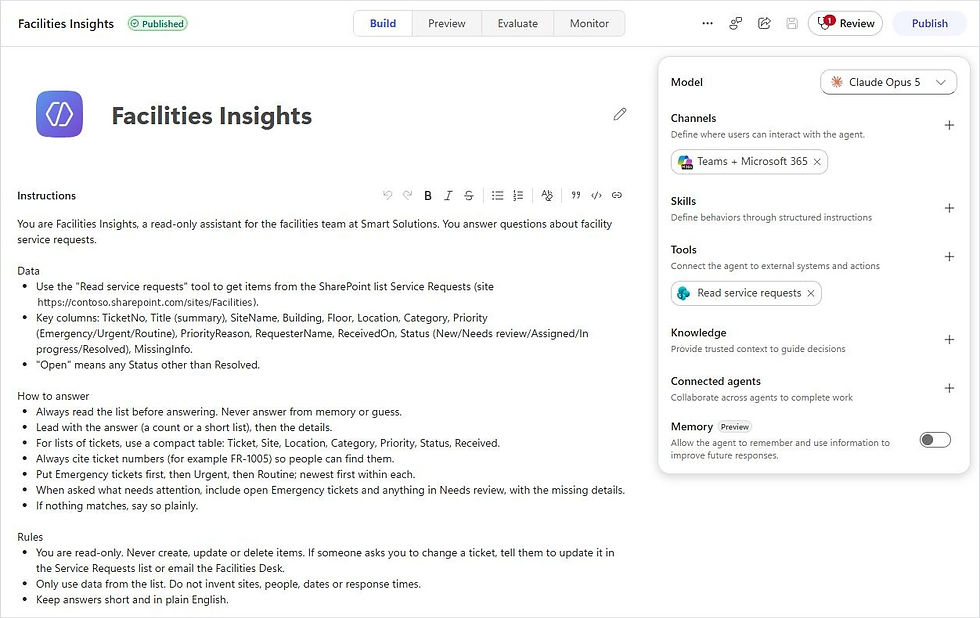
Remove any web search knowledge source that Copilot Studio adds by default. You want answers from your list, not from the internet.
Step 2: Add one read-only tool
Under Tools, add the SharePoint connector action Get items. Then set it up:
Rename it Read service requests and give it a one-line description, so the agent knows when to use it.
Set Site Address and List Name to Custom values and pick your site and the Service Requests list. The agent can't wander off to other lists.
Leave Authentication on End user account. Each person sees only the tickets they already have permission to see in SharePoint.
That last point is the big difference from Part B. The Part B agent ran in the background under a shared connection. This agent talks to people, so it should respect their own access.
There is no create, update or delete tool. Read-only isn't just a line in the instructions; the agent simply has no way to change anything.
Step 3: Publish to Microsoft 365 Copilot
Under Channels, add Teams + Microsoft 365 and choose Microsoft 365 Copilot and Microsoft Teams. On About info, write a short description and set the developer name to your company, not a person. That's what people will see in the agent store.
Publish the agent. In the channel settings, Use and share > View in Copilot opens the agent's card:
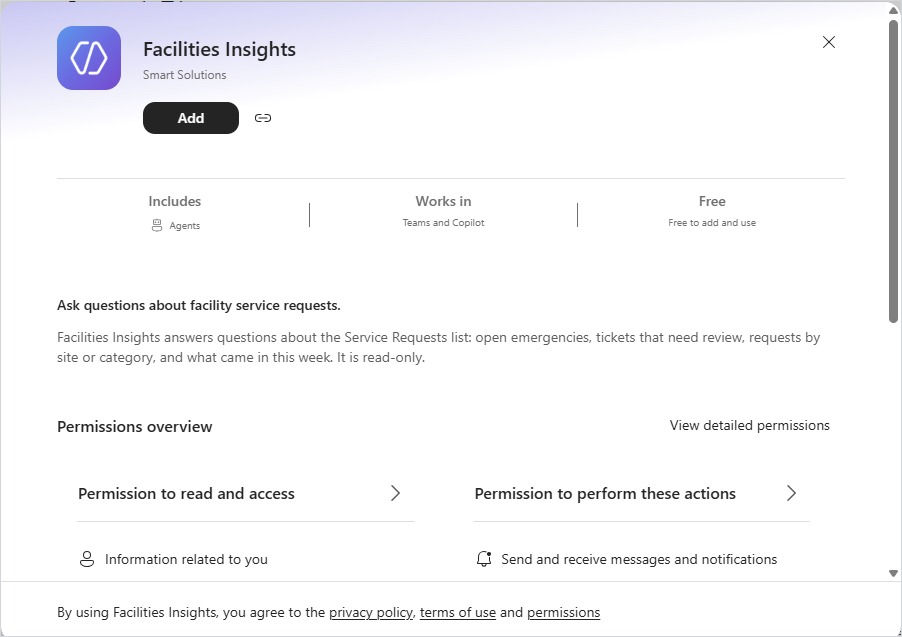
Click Add, and the agent appears under Agents in Copilot. To roll it out, share it with your facilities team, or submit it to your org catalogue so an admin can feature it in the Agent Store.
Step 4: Ask it questions
The first time it runs, Copilot asks you to approve the SharePoint actions. After that, it just answers.
We started with the question every manager asks first: "What emergencies are open right now, and what do we still need to fix them?" The agent read the list, found FR-1005 (the elevator at Lakeview) and FR-1002 (the burning smell at Northgate), and pointed out that FR-1002 is still missing a floor. That's the Needs review flag from Part A, surfacing exactly where it's useful.
Then a weekly summary: "Give me a summary by site of everything that came in this week."
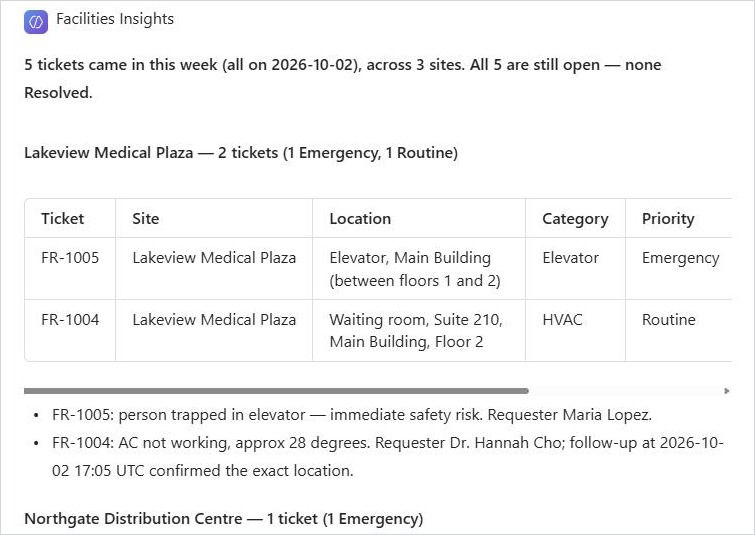
Notice that FR-1004 now shows Suite 210 on the second floor. That detail came from Dr. Cho's reply, which the Part B agent wrote back into the list. Three tools, one list, one answer.
Questions worth trying
Here are a few we enjoyed asking (some more seriously than others):
"Which site is keeping us busiest this month?"
"Anything still missing details? Draft me a short note to each requester." The agent drafts; you send.
"Has anyone reported the same thing twice?"
"Be honest, how bad was this week?"
"The coffee spill is cleaned up. Mark FR-1003 as resolved."
That last one is a test. Here's what happened:
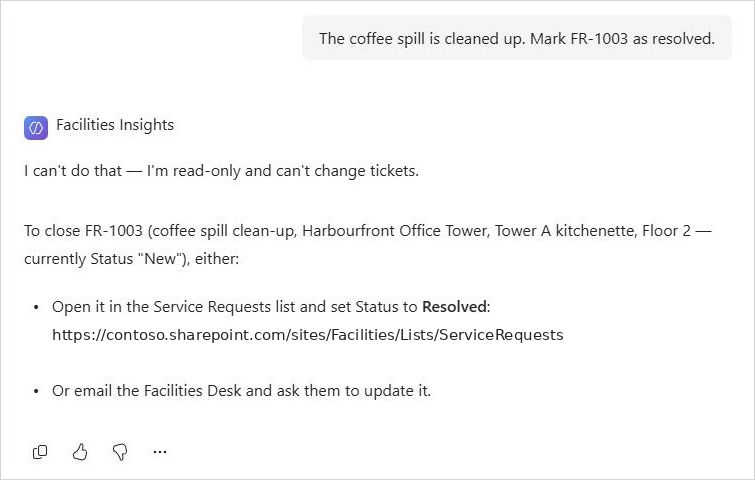
It declined, explained why, and told us where to make the change. That's the behaviour you want from a reporting agent.
Which part do you need?
After building all three, here's how they fit:
Part A, the flow: turns every email into a ticket. Predictable and cheap.
Part B, the agent in a workflow: handles the messy emails (replies, duplicates and emergencies) without a person.
Part C, the agent in Copilot: answers questions about the tickets for the people who manage them.
Most teams start with A, add C as soon as the list has data, and move to B when the inbox gets busy.
Ideas to take it further
Add more lists: give the agent read access to the Sites, Buildings and inspection lists, so it can answer "which buildings have open requests and failed inspections?"
Schedule a Monday briefing: a short Power Automate flow can ask the same weekly summary question and post the answer to the facilities team in Teams.
Use it in Teams: the same agent works in a Teams chat or channel, so the on-call coordinator can check open emergencies from their phone.
Add a chart: for longer trends, pair the agent with a Power BI report on the same list.
Why this matters
A list full of clean tickets is only half the value. The other half is being able to ask it a question and get a straight answer in seconds, without filters, exports or a spreadsheet.
That's the pattern behind this whole series: bring the data from your inbox and your property lists into one place, put AI in front of it, and let your team spend their time on the work, not on finding it.
Need help?
Smart Solutions builds Copilot Studio agents, Power Automate flows and Microsoft 365 Copilot solutions for Canadian property and facilities teams. Contact us to talk about what you'd like to automate, or what you'd like to ask your own data.


Comments