
How to Build a Site Inspection App with Power Apps, Power Automate and SharePoint (Buildings, Rooms, Equipment and Due Dates)
If your building inspections still live on a clipboard or a shared spreadsheet, you already know the problems. Someone skips the generator room, the fire extinguisher tags go unchecked for a month, and nobody can say which sites are overdue until a tenant complains.
In this guide we'll build a complete site inspection system for property hard services on Microsoft 365. Each site has its own buildings, rooms and equipment. A master library holds the standard room and equipment questions, and each site admin picks the ones they need, rewords them, adds their own and sets the order. Operators get a tablet-friendly canvas app that walks them through building, room and equipment checks. Power Automate schedules inspections by frequency, flags anything past due, and emails the site admin a summary of failed items when an inspection is done.

What you'll build
A hierarchy of sites, buildings, rooms and equipment, all in SharePoint lists.
A master question library for rooms and equipment. Questions can apply to every room (or every piece of equipment) or only to one type, such as Washroom or Fire Extinguisher.
Site-level question sets that a site admin controls: import from the master library, reword, reorder, hide or add site-specific questions.
Three answer types: Pass / Fail / N/A, Reading (a number, like a temperature or fuel level) and Note.
A scheduler flow that creates inspections from each site's frequency (weekly, monthly or quarterly), marks them past due and sends reminders.
An operator screen that drills down from building to room to equipment, with a progress bar and per-room counters.
A completion flow that emails the site admins a table of failed items with the operator's comments.
A results screen for admins, with failed checks at the top.
What you'll need
Microsoft 365 with SharePoint Online, Outlook, Power Apps and Power Automate. Everything here uses standard connectors, so no premium licence is needed.
A SharePoint site you own (we'll create one called Site Inspections).
A tablet or laptop for the operators. The app is built in tablet layout and works in a browser, in the Power Apps mobile app and in Teams.
Step 1: Create the SharePoint lists
Create a new SharePoint team site called Site Inspections, then add these nine lists. We link records with plain Number columns (SiteID, BuildingID, RoomID) instead of lookup columns. Number filters delegate cleanly in Power Apps and are simple to set from Power Automate.
The site structure
Sites: Title (site name), Address, City, Frequency (Choice: Weekly, Monthly, Quarterly), NextDue (Date), DefaultOperator (text, the operator's email), Active (Yes/No).
Buildings: Title, SiteID, SortOrder.
Rooms: Title, SiteID, BuildingID, Floor, RoomType (Choice: Office, Washroom, Kitchen, Lobby, Mechanical Room, Electrical Room, Parking), SortOrder.
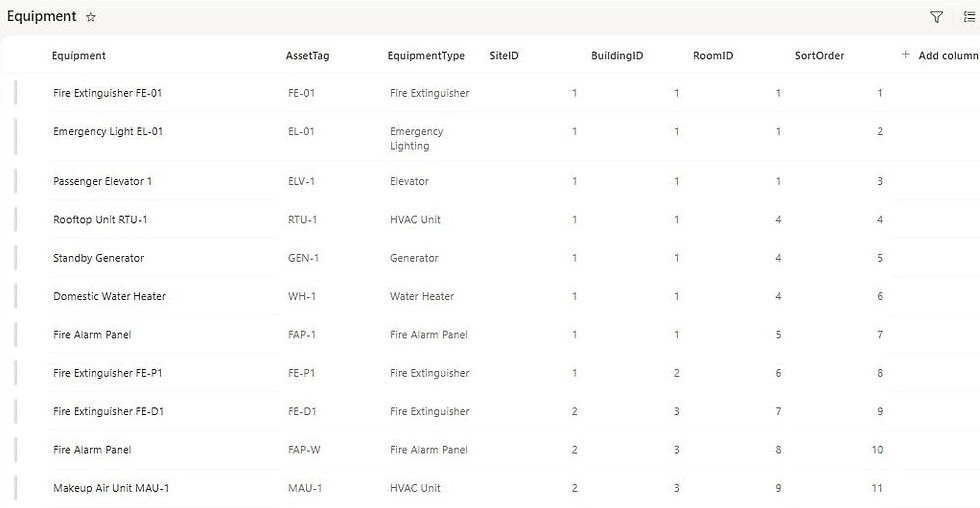
Equipment: Title, AssetTag, EquipmentType (Choice: HVAC Unit, Fire Extinguisher, Emergency Lighting, Elevator, Generator, Fire Alarm Panel, Water Heater), SiteID, BuildingID, RoomID, SortOrder.
Each piece of equipment belongs to a room, and each room belongs to a building. That's what gives operators the drill-down: pick a building, pick a room, then check the room itself and each piece of equipment in it.
The question library
Master Questions: Title (the question), AppliesTo (Choice: Room, Equipment), Category (text: a room type, an equipment type, or All), AnswerType (Choice: Pass / Fail, Reading, Note), SortOrder, Active.
Site Questions: the same columns plus SiteID and MasterID (the master question it came from, or 0 for a site-specific question).
A Category of All means the question applies to every room, or every piece of equipment. "Floors clean and free of trip hazards" is an All question for rooms, "Pressure gauge in green zone" only applies to Fire Extinguisher.

Why copy questions to each site instead of pointing at the master list? Because site admins need to own their checklist. A hospital washroom and a warehouse washroom don't get the same questions, and one site rewording a question shouldn't change it everywhere else. MasterID keeps the link so you can still report across sites.
People and inspections
Site Users: Title (email, lower case), SiteID, Role (Choice: Global Admin, Site Admin, Operator). Global admins use SiteID 0.
Inspections: Title, SiteID, SiteName, DueDate, Status (Choice: Scheduled, In progress, Completed, Past due), AssignedTo (email), StartedOn, CompletedOn, CompletedBy, Answered, Failed, SummarySent (Yes/No, default No).
Inspection Results: Title (the question text at the time of the inspection), InspectionID, SiteID, BuildingID, RoomID, EquipmentID (0 for room checks), TargetType, TargetName, QuestionID, Answer, IsFail (Yes/No), Comments.
Results store the question text and the room or equipment name, not just IDs. If someone rewords a question next month, last month's report still shows what the operator actually answered.
Step 2: Schedule inspections with Power Automate
Create a Scheduled cloud flow called Inspection Scheduler that runs every morning at 6:00 in your time zone.

Get sites due soon: SharePoint Get items on Sites with this Filter Query, so inspections appear a week before they're due:
Active eq 1 and NextDue le '@{addDays(utcNow(),7,'yyyy-MM-dd')}'For each due site, Get open inspection checks whether one is already waiting:
SiteID eq @{items('For_each_due_site')?['ID']} and Status ne 'Completed'If the result is empty (the condition is length(outputs('Get_open_inspection')?['body/value']) equal to 0):
Create inspection: Create item on Inspections with Title "Site name - due date", SiteID, SiteName, DueDate = the site's NextDue, Status = Scheduled and AssignedTo = DefaultOperator.
Move next due date: Update item on Sites. NextDue moves forward by the site's frequency:
if(equals(items('For_each_due_site')?['Frequency']?['Value'],'Weekly'), addDays(items('For_each_due_site')?['NextDue'],7,'yyyy-MM-dd'), addToTime(items('For_each_due_site')?['NextDue'], if(equals(items('For_each_due_site')?['Frequency']?['Value'],'Quarterly'),3,1), 'Month', 'yyyy-MM-dd'))Email the operator: Send an email (V2) with the site, address and due date.

Next, the flow flags anything overdue. Get overdue inspections uses this filter:
Status eq 'Scheduled' and DueDate lt '@{utcNow('yyyy-MM-dd')}'For each one it sets Status to Past due, gets the site admins from Site Users (SiteID eq the inspection's SiteID and Role eq 'Site Admin'), turns them into a list of emails with a Select action (map: item()?['Title']) and sends the operator a reminder with the admins in CC:
join(body('Admin_emails'),';')

Only Scheduled inspections are marked past due. Once an operator starts one it's In progress, and the app shows how many days overdue it is instead.
Step 3: Set up the app and the user roles
In Power Apps, create a blank canvas app in Tablet format and add all nine lists as data sources. Then select App and add these named formulas in the Formulas property:
MyEmail = Lower(User().Email);
IsGlobalAdmin = !IsBlank(LookUp('Site Users', Title = MyEmail && Role.Value = "Global Admin"));
MyAdminSiteIDs = Filter('Site Users', Title = MyEmail && Role.Value = "Site Admin");
IsAnyAdmin = IsGlobalAdmin || !IsEmpty(MyAdminSiteIDs);
Operators see inspections assigned to them. Site admins also see every inspection for their sites, and get the Manage sites and Results buttons. Global admins see everything.
Step 4: Build the home screen
The home screen shows three tiles (past due, due in the next 7 days, completed this month) and a gallery of open inspections. Load the data in the screen's OnVisible:
ClearCollect(colVisible, SortByColumns(Filter(Inspections, Status.Value <> "Completed" && (IsGlobalAdmin || AssignedTo = MyEmail || SiteID in MyAdminSiteIDs.SiteID)), "DueDate", SortOrder.Ascending));
ClearCollect(colDone, Filter(Inspections, Status.Value = "Completed" && (IsGlobalAdmin || AssignedTo = MyEmail || SiteID in MyAdminSiteIDs.SiteID)))
The Past due tile is CountRows(Filter(colVisible, DueDate < Today())). Each gallery row shows the due date, a status badge and a friendly overdue message:
With({d: DateDiff(Today(), ThisItem.DueDate, TimeUnit.Days)}, If(d < 0, -d & " days overdue", d = 0, "Due today", "Due in " & d & " days"))The Start inspection button marks it In progress and opens the inspection screen:
Set(varInsp, ThisItem); If(ThisItem.Status.Value <> "In progress", Set(varInsp, Patch(Inspections, ThisItem, {Status: {Value: "In progress"}, StartedOn: Now()}))); Navigate(Screen2, ScreenTransition.Cover)Step 5: Build the inspection screen
This is where operators spend their time. On the left they pick a building, then a room. At the top right, a row of buttons shows Room checks plus every piece of equipment in that room. Below that are the questions for whatever is selected.

The screen's OnVisible loads everything for the site once, so the drill-down is instant:
ClearCollect(colQ, Filter('Site Questions', SiteID = varInsp.SiteID && Active));
ClearCollect(colRooms, SortByColumns(Filter(Rooms, SiteID = varInsp.SiteID), "SortOrder"));
ClearCollect(colEquip, SortByColumns(Filter(Equipment, SiteID = varInsp.SiteID), "SortOrder"));
ClearCollect(colRes, Filter('Inspection Results', InspectionID = varInsp.ID));
Set(varTotal, Sum(colRooms As r, CountRows(Filter(colQ, AppliesTo.Value = "Room" && (Category = "All" || Category = r.RoomType.Value)))) + Sum(colEquip As e, CountRows(Filter(colQ, AppliesTo.Value = "Equipment" && (Category = "All" || Category = e.EquipmentType.Value)))));
varTotal is the number of checks in the whole inspection. The header shows "12 of 65 checks done", a progress bar fills across the top, and each room shows its own counter that turns green when it's finished.
When a room is picked, a hidden button builds the list of things to inspect in that room:
ClearCollect(colTargets, {ID: 0, Name: "Room checks", Kind: varRoom.RoomType.Value});
Collect(colTargets, ForAll(Filter(colEquip, RoomID = varRoom.ID), {ID: ThisRecord.ID, Name: ThisRecord.Title, Kind: ThisRecord.EquipmentType.Value}))
Clicking a button in that row sets varEquipID (0 for room checks), varAT (Room or Equipment) and varCat (the room or equipment type). The questions gallery then only needs one filter:
SortByColumns(Filter(colQ, AppliesTo.Value = varAT && (Category = "All" || Category = varCat)), "SortOrder")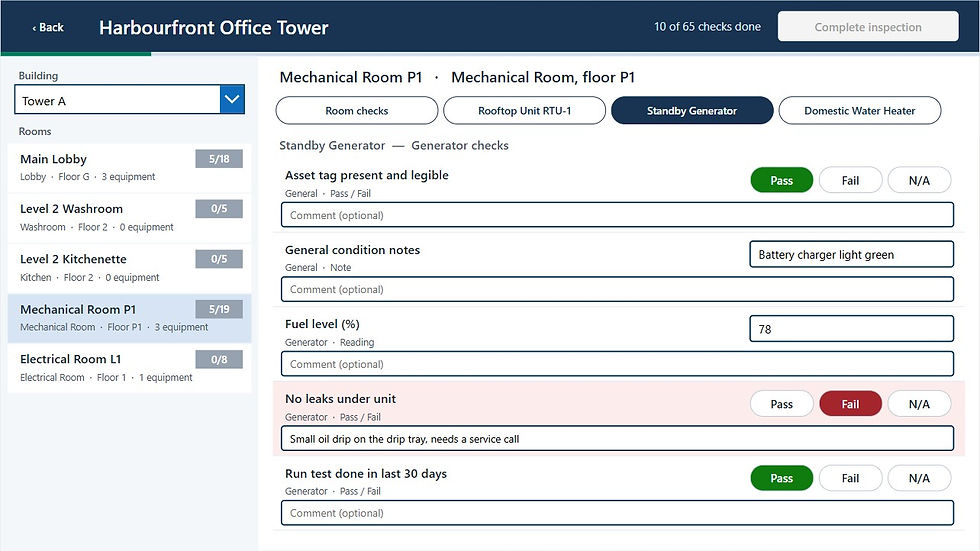
Pass / Fail questions show three buttons, Reading and Note questions show a text box, and every question has a comment box. Each answer is saved to SharePoint straight away, so nothing is lost if the tablet drops off Wi-Fi halfway through a building. The Fail button's OnSelect creates the result the first time and updates it after that:
With({cur: LookUp(colRes, QuestionID = ThisItem.ID && RoomID = varRoom.ID && EquipmentID = varEquipID)},
    If(IsBlank(cur),
        Collect(colRes, Patch('Inspection Results', Defaults('Inspection Results'), {Title: ThisItem.Title, InspectionID: varInsp.ID, SiteID: varInsp.SiteID, BuildingID: varRoom.BuildingID, RoomID: varRoom.ID, EquipmentID: varEquipID, TargetType: {Value: varAT}, TargetName: varTargetName, QuestionID: ThisItem.ID, Answer: "Fail", IsFail: true})),
        Patch(colRes, cur, Patch('Inspection Results', cur, {Answer: "Fail", IsFail: true}))))
Failed rows turn pale red, using the same LookUp in the row's Fill. The Complete inspection button stays disabled until every check is answered:
If(Coalesce(varTotal, 0) > 0 && CountRows(Filter(colRes, !IsBlank(Answer))) >= varTotal, DisplayMode.Edit, DisplayMode.Disabled)
Completing sets Status to Completed with CompletedOn, CompletedBy, Answered and Failed, and the flow in Step 7 takes it from there.
Step 6: Let site admins manage their own questions
The Manage sites screen is where site admins run their sites without calling IT. At the top they set the inspection frequency and next due date. Below, they pick Room or Equipment questions and a category, and see that site's checklist in order.

Each row has an editable question, up and down arrows and an Active button. The up arrow swaps SortOrder with the question above it:
With({prev: Last(Filter(colAdmQ, SortOrder < ThisItem.SortOrder))},
    If(!IsBlank(prev),
        Patch('Site Questions', LookUp('Site Questions', ID = ThisItem.ID), {SortOrder: prev.SortOrder});
        Patch('Site Questions', LookUp('Site Questions', ID = prev.ID), {SortOrder: ThisItem.SortOrder});
        Select(btnReloadQ)))
Hidden questions stay in the list for history but disappear from new inspections, because the inspection screen only loads Active questions.
On the right, the Master library shows questions for the same category that this site isn't using yet, each with an Add button:
Filter('Master Questions', Active && AppliesTo.Value = varAdmAT && Category = ddCat.Selected.Value && !(ID in colAdmQ.MasterID))
For a brand-new site, Import all master questions copies every active master question whose category matches a room type or equipment type at that site (plus the All questions):
ClearCollect(colSiteCats, {Cat: "All"});
Collect(colSiteCats, ForAll(Filter(Rooms, SiteID = ddSite.Selected.ID), {Cat: ThisRecord.RoomType.Value}));
Collect(colSiteCats, ForAll(Filter(Equipment, SiteID = ddSite.Selected.ID), {Cat: ThisRecord.EquipmentType.Value}));
ClearCollect(colExisting, Filter('Site Questions', SiteID = ddSite.Selected.ID));
ForAll(Filter('Master Questions', Active) As m, If(m.Category in colSiteCats.Cat && !(m.ID in colExisting.MasterID), Patch('Site Questions', Defaults('Site Questions'), {Title: m.Title, SiteID: ddSite.Selected.ID, MasterID: m.ID, AppliesTo: {Value: m.AppliesTo.Value}, Category: m.Category, AnswerType: {Value: m.AnswerType.Value}, SortOrder: m.SortOrder, Active: true})))
A text box and answer type picker at the bottom add site-specific questions with MasterID 0, like "Cabinet glass intact and hammer present" for one building's extinguisher cabinets.
Step 7: Email the site admin when an inspection is done
Create an Automated cloud flow called Inspection Completed Summary with the SharePoint trigger When an item is created or modified on Inspections. In the trigger's Settings, add this trigger condition so it only runs once per completed inspection:
@and(equals(triggerOutputs()?['body/Status/Value'],'Completed'), not(equals(triggerOutputs()?['body/SummarySent'],true)))
The flow then:
Get results: Get items on Inspection Results with the filter InspectionID eq the trigger's ID and Top Count 5000.
Failed items: a Filter array where IsFail is equal to true.
Failed rows: a Select that maps Location (TargetName), Check (Title), Answer and Comments.
Failed table: Create HTML table from the Select.
Get site admins and Admin emails: the same pattern as the scheduler.
Mark summary sent: Update item with SummarySent = Yes, plus the Answered and Failed counts. Because of the trigger condition, this update doesn't start the flow again.
Email site admins: a red or green badge, the site, due date, who completed it and when, and the failed items table (or "No issues found").

Create HTML table has no styling, so wrap it with a quick replace to add borders and a shaded header:
replace(replace(body('Failed_table'),'<table>','<table style="border-collapse:collapse" border="1" cellpadding="6">'),'<th>','<th style="background:#f0f4f8;text-align:left">')
Step 8: Show results to admins
The Results screen lists completed inspections with a failed count badge. Select one to see every answer, with failed checks sorted to the top:
SortByColumns(Filter('Inspection Results', InspectionID = varResInsp.ID), "IsFail", SortOrder.Descending, "TargetName", SortOrder.Ascending)
Gotchas we hit while building it
Classic drop-downs: when Items is a formula, the Value field in the properties pane is greyed out, and it can't be set from the formula bar. Set Items to the plain list first, choose the column (for example Site), then put your formula back.
Galleries: labels sit on top of the row, so clicks on the text don't select the row. Set each label's OnSelect to Select(Parent).
Blank isn't zero in Power Fx. If(varTotal = 0, ...) is false while varTotal is still blank, so a progress bar dividing by varTotal throws "division by zero". Wrap it: Coalesce(varTotal, 0).
Choice columns in OData filters: Status eq 'Completed' works in Get items. In Power Apps compare Status.Value.
Security and scale
The app shows each person only their own inspections and sites, but that's filtering, not security. Anyone with Contribute on the lists could open them in SharePoint. For a real rollout:
Give operators Contribute only on Inspections and Inspection Results, and Read on the structure and question lists.
Give site admins edit access to Site Questions and Sites through a SharePoint group per site, or break permissions per item from a flow, as we did in our vacation request app.
Keep the master library editable by global admins only.
SharePoint is fine for hundreds of sites and tens of thousands of results. The filters here use Number and Choice columns so they delegate, but "in" and "<>" don't. If a site grows past 2,000 rooms or you need proper relational security, move the same design to Dataverse.
Make it production-ready
Photos: add an Add picture control to each failed row and save it as an attachment on the result, or to a document library named by site.
Corrective actions: have the completion flow create a work order for each failed item in a Corrective Actions list (or your CMMS) with an owner and due date.
QR codes: put a QR code on each room door and piece of equipment. A barcode scanner on the inspection screen jumps straight to that room or asset.
Offline: cache the collections with SaveData and LoadData so operators can inspect basements and parkades with no signal, then sync when they're back online.
Signatures: add a pen input on completion and store the image with the inspection.
Different frequencies per building or per equipment type: move Frequency and NextDue to Buildings, or add a frequency to each master question.
The fun part: facilities manager bingo
Mark every one you've heard this year:
"The generator's fine, we ran it... at some point."
A fire extinguisher being used as a door stop.
An electrical room that's also the storage room for holiday decorations.
"Who has the key to the mechanical room?"
An inspection clipboard last seen in 2019.
Three or more? This app will pay for itself before the next fire inspection.
Need a hand?
Smart Solutions builds Power Apps and Power Automate solutions for Canadian property and facilities teams, from inspections and work orders to full hard services and lease management apps. Contact us and we'll help you roll this out across your portfolio, or tailor it to your buildings and compliance rules.
Managing leases as well as buildings? Take a look at Frontage, our commercial leasing CRM for Canadian brokers.


Comments