
Automate Invoice Approvals: Match Supplier Invoices to POs with Power Automate and AI
Updated: 1 day ago
In our invoice extraction guide we pulled the numbers out of PDF invoices. That's the easy part. The real work in accounts payable starts after that: which purchase order does this invoice belong to, is it within budget, who has to approve it, and how does it get into the finance system?
In this guide we build that second half. Supplier invoices arrive in a shared Accounts Payable mailbox. An AI prompt reads each PDF and finds the matching purchase order, even when the supplier forgot to print the PO number. The flow checks the amount against the PO, sends the invoice to the person who owns that PO, adds a finance sign-off for anything over $10,000, and records every decision in SharePoint.
Here's the AP list after one batch of real-looking invoices:

What you'll build
One AP inbox: suppliers email invoices to ap@yourcompany.com, a shared mailbox the whole team can see.
AI that reads and matches: a prompt extracts the invoice fields and picks the right open PO from your list.
A tolerance check: if the invoice is more than 5% over the PO's remaining balance, it stops and is marked Over PO.
The right approver: the approval goes to the PO owner, not to a shared AP queue.
Escalation: anything over $10,000 also needs a finance manager.
A clean record: status, match result, approver and comments are saved on every invoice.
An optional last step: post approved invoices to your finance system with an HTTP request.
What you'll need
Microsoft 365 with a shared mailbox for AP.
A SharePoint site for the lists. We used the same property management site as our other guides.
Power Automate with AI Builder or Copilot Credits for the prompt. In our tests each invoice used about 0.3 credits.
The Approvals connector, which is included with Power Automate.
Step 1: The Purchase Orders list
The PO list is what makes routing possible. Each row has the PO number, vendor, site, description, GL code, the PO amount, how much has been invoiced so far, and most importantly the PO owner, the person who asked for the work and will approve the bill.
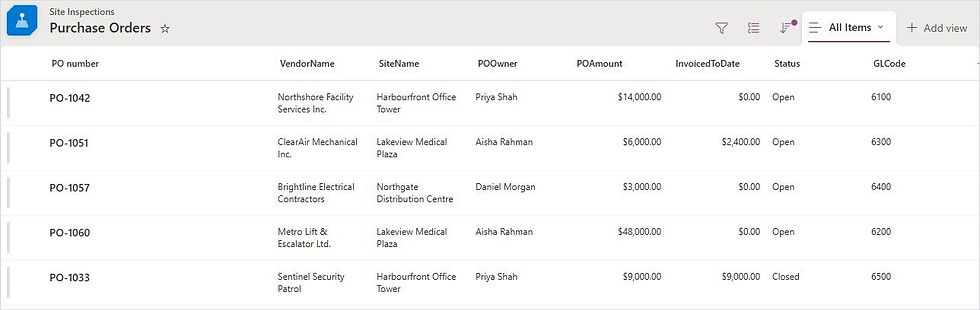
Add a POOwnerEmail column too. It's hidden in the screenshot, but it's where the approval gets sent.
Step 2: The AP Invoices list and library
Create an AP Invoices list with columns for vendor, invoice and due dates, PO number, site, GL code, subtotal, tax, total, a Status choice (Received, Needs review, Over PO, Pending approval, Approved, Rejected, Posted), MatchResult, Approver, ApprovedOn, ApprovalComments, Confidence and a link to the PDF. Add a document library called AP Invoice Files to keep a copy of every invoice.
Step 3: Teach a prompt to read invoices and find the PO
In Power Automate, go to AI hub > Prompts > Build your own prompt. This prompt has two inputs:
Invoice: an Image or document input. This is the PDF itself.
OpenPOs: a text input. The flow will fill it with one line per open PO.
The instructions tell the model what to return as JSON and, crucially, what to do when there's no PO number on the invoice: "choose the open purchase order whose vendor, site and description clearly match this invoice, and set poSource to matched. If none clearly matches, return an empty PO number." It also has a "never guess an amount" rule. Set Output to JSON and test it with a real invoice:
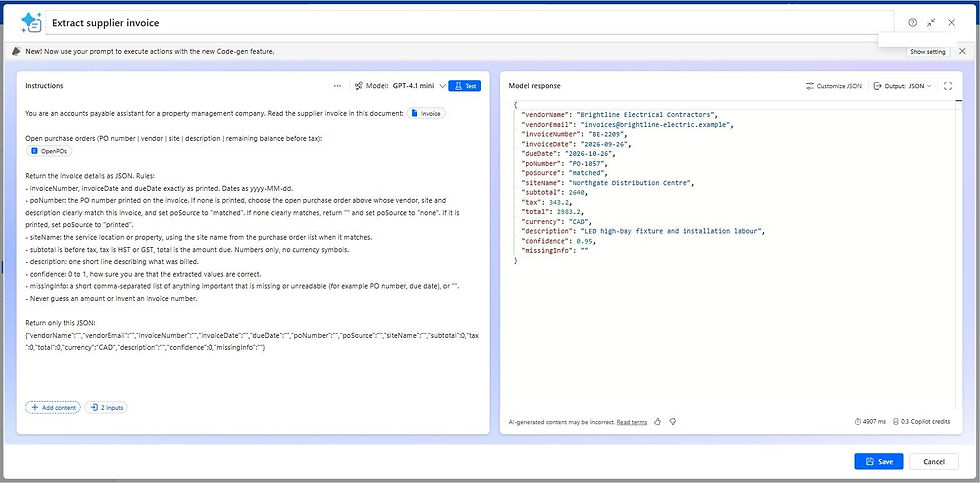
That test invoice from Brightline Electrical had no PO number on it. The prompt read "LED high-bay fixture, loading dock" and matched it to PO-1057, "Replace LED fixtures at loading dock (12 units)". That's the kind of judgement that used to need a person.
Step 4: Build the flow
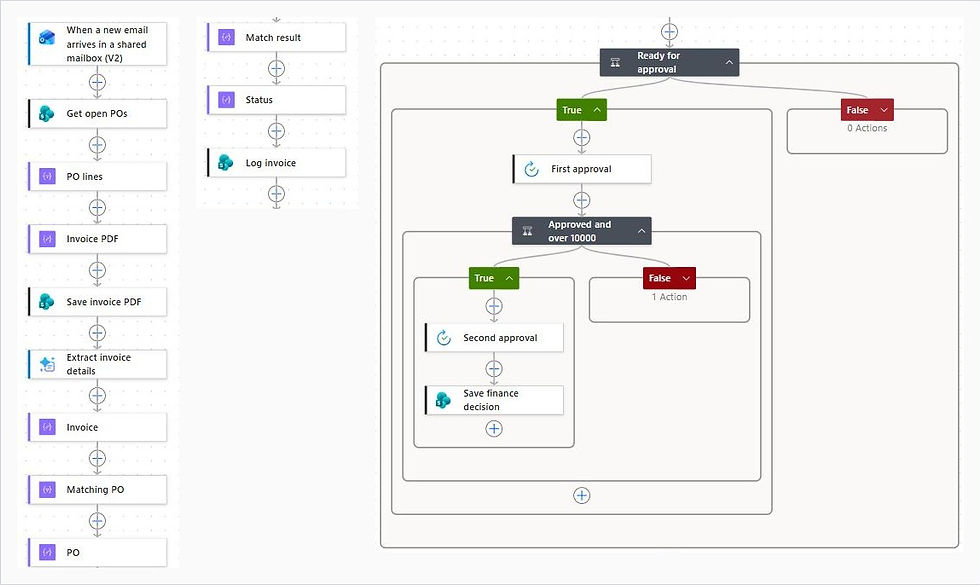
Create an automated cloud flow with the trigger When a new email arrives in a shared mailbox (V2). Set the mailbox address, set Only with Attachments and Include Attachments to Yes, and set Folder to Inbox.
Then add these steps:
Get open POs: SharePoint Get items on Purchase Orders, with the filter Status eq 'Open'.
PO lines: a Select action in text mode that turns each PO into one line for the prompt.
Invoice PDF: a Compose that picks the attachment. We used the first attachment; the extraction guide shows how to filter to PDFs only and loop over several.
Save invoice PDF: SharePoint Create file in the AP Invoice Files library.
Extract invoice details: AI Builder Run a prompt, with Invoice set to the attachment's content bytes and OpenPOs set to the joined PO lines.
Invoice: a Compose that holds the prompt's JSON so the rest of the flow can use it by name.
The two expressions that do the work:
concat(item()?['Title'],' | ',item()?['VendorName'],' | ',item()?['SiteName'],' | ',item()?['Description'],' | ',string(sub(float(coalesce(item()?['POAmount'],0)),float(coalesce(item()?['InvoicedToDate'],0)))))
body('Extract_invoice_details')?['responsev2']?['predictionOutput']?['structuredOutput']
The first builds the PO line, including the remaining balance. The second pulls the prompt's JSON out of the AI step.
Step 5: Match the invoice to the PO
Add a Filter array called Matching PO over the open POs, keeping the one whose PO number equals the one the prompt returned. A Compose called PO takes the first match. Then two Compose actions decide what happens next.
Status is Needs review when there's no PO, Over PO when the invoice is more than 5% over the remaining balance, Needs review when the AI's confidence is under 0.7, and Pending approval otherwise:
if(empty(outputs('PO')),'Needs review',if(greater(float(coalesce(outputs('Invoice')?['subtotal'],0)),mul(sub(float(coalesce(outputs('PO')?['POAmount'],0)),float(coalesce(outputs('PO')?['InvoicedToDate'],0))),1.05)),'Over PO',if(less(float(coalesce(outputs('Invoice')?['confidence'],0)),0.7),'Needs review','Pending approval')))Match result is the same logic written as a sentence a person can read, for example "Over PO: invoice $3,980.00 vs remaining $3,600.00" or "Matched PO-1057 (no PO printed, matched by AI), within PO balance". It ends up in the list and in the approval request, so nobody has to work out why an invoice was stopped.
Compare the subtotal, not the total, because POs are usually raised before tax. Change 1.05 to whatever tolerance your finance team uses.
Step 6: Log the invoice
Add SharePoint Create item on AP Invoices and map every field from the Invoice and PO composes: vendor, dates, PO number, site and GL code from the PO, amounts, Status, Match result, confidence and the link to the saved PDF. Logging before approval means every invoice is visible in the list from the moment it arrives, even the ones that need review.
Step 7: Route the approval
Add a Condition: Status is equal to Pending approval. In the True branch:
First approval: Start and wait for an approval, type Approve/Reject - First to respond. Assigned to is the PO owner's email from the PO compose. The details use Markdown to show the vendor, invoice, amounts, PO, site, GL code and match result, with a link to the PDF.
Approved and over 10000: a second Condition that checks the first outcome is Approve and the total is greater than 10,000.
Second approval: in its True branch, a finance approval that includes the first approver's name and comment.
Save decision: Update item on the AP invoice with the status, approver names, date and comments. There's one in each branch, so neither branch refers to an approval that didn't run.
The approver sees everything they need in one place, in Outlook, Teams or the Power Automate app:
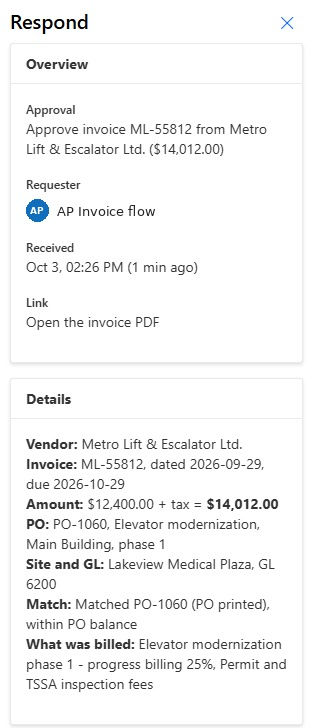
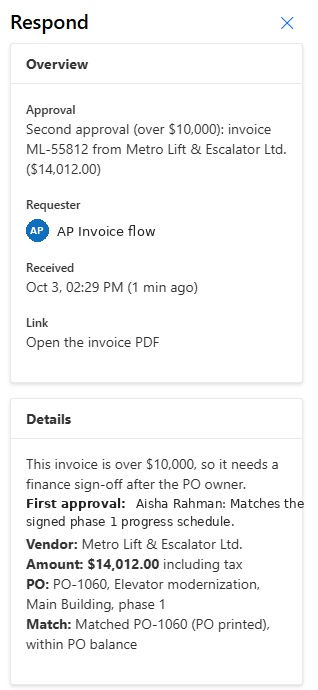
And for the $14,012 elevator invoice, finance gets a second request that already shows what the PO owner said:
Step 8: Test it
We emailed five supplier invoices to the AP mailbox:
Brightline Electrical, $2,983.20: no PO on the invoice. The AI matched PO-1057, it went to Daniel Morgan and was approved.
Northshore Facility Services, $3,943.70: PO-1042 printed, within budget, approved by Priya Shah.
ClearAir Mechanical, $4,497.40: $3,980 before tax against $3,600 left on PO-1051. Stopped as Over PO, no approval sent.
Metro Lift & Escalator, $14,012.00: PO-1060, approved by Aisha Rahman, then by Elena Petrova in finance because it's over $10,000.
Peak Roofing, $5,424.00: an emergency repair with no PO at all. Marked Needs review with the reason "No PO on the invoice and no matching open PO".
Every one ended up in the right place, and the two problem invoices were stopped before anyone could approve them by mistake.
Added feature: post approved invoices to your finance system
Approval is usually not the end. Somebody still has to key the invoice into QuickBooks, Xero, Sage, NetSuite or Dynamics. Most finance systems have a REST API, so the flow can do it. Add these steps after Save decision, in the approved branch:
HTTP: method POST, the URI of your finance system's bills endpoint, and the body below.
Authentication: use the system's OAuth or API key method. Keep secrets in an environment variable or Azure Key Vault, never typed into the flow.
Parse the response: read the bill ID the finance system returns.
Update item: set Status to Posted and save that ID in an ERPReference column, so you can always trace an invoice from SharePoint to the ledger.
A typical request body looks like this (field names vary by system):
{
  "vendorName": "@{outputs('Invoice')?['vendorName']}",
  "invoiceNumber": "@{outputs('Invoice')?['invoiceNumber']}",
  "invoiceDate": "@{outputs('Invoice')?['invoiceDate']}",
  "dueDate": "@{outputs('Invoice')?['dueDate']}",
  "currency": "CAD",
  "lines": [{
    "description": "@{outputs('Invoice')?['description']}",
    "glAccount": "@{outputs('PO')?['GLCode']}",
    "amount": @{outputs('Invoice')?['subtotal']},
    "taxAmount": @{outputs('Invoice')?['tax']},
    "purchaseOrder": "@{outputs('PO')?['Title']}",
    "costCentre": "@{outputs('PO')?['SiteName']}"
  }],
  "externalReference": "@{outputs('Invoice')?['vendorName']}-@{outputs('Invoice')?['invoiceNumber']}"
}
Three tips from experience:
Make it safe to retry. Send a unique external reference such as vendor plus invoice number, and check for it first, so a retry never creates a second bill.
Turn on the retry policy in the HTTP action's settings, and add a branch that sets Status to "Posting failed" and emails AP if the call still fails.
Look for a connector first. Dynamics 365 Business Central, QuickBooks Online and Xero all have Power Automate connectors, which save you the authentication work. The HTTP action is a premium connector.
We left this step out of our demo because there's no live ledger behind it, but it's the step that turns this from an approval workflow into touchless AP.
A quick quiz: would you pay it?
Five seconds each. Our flow's answer is at the end.
An invoice for $3,120 against a PO with $3,000 left.
An invoice for $3,300 against the same PO.
A $9,800 invoice from the right vendor, but with someone else's PO number on it.
A $480 invoice with no PO, from a vendor you've never heard of, due "immediately".
Answers: the first is within 5%, so it goes to the PO owner. The second is Over PO and stops. The third gets matched to a different PO, so the approver sees a mismatch they can question. The fourth is Needs review, and frankly it deserves a phone call before anyone pays it.
Ideas to take it further
Update the PO balance: after approval, add the subtotal to InvoicedToDate, so the next invoice is checked against what's really left.
Catch duplicates: before logging, look for the same vendor and invoice number in the AP list.
Tell AP what needs attention: send an email from the shared mailbox for every Needs review or Over PO invoice.
Three-way match: add a Goods Received list and check that what was invoiced was actually delivered.
Watch for bank changes: have the prompt flag any invoice whose payment details differ from the vendor record. It's the most common invoice fraud.
Why this matters
Accounts payable is where good intentions meet a pile of PDFs. The approver is rarely the person in AP, the PO lives in another system, and the invoice is missing half of what you need to connect them. When you bring the POs, the invoices and the people into one place and put AI in front of it, the matching takes seconds, every approval reaches the right person, and AP spends its time on the exceptions instead of the paperwork.
Need help?
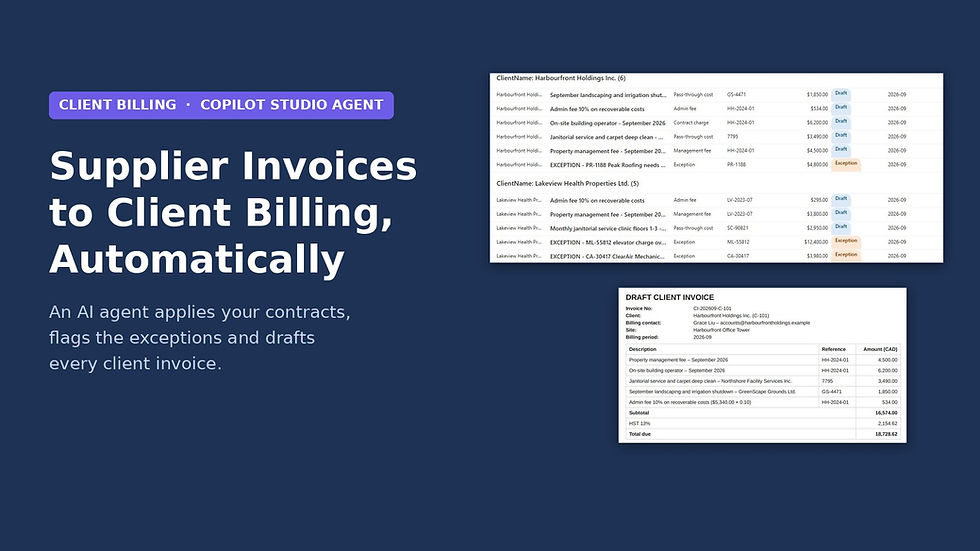
Smart Solutions builds invoice approval workflows, Power Automate flows and finance integrations for Canadian businesses. If you'd rather have purchase orders, approvals and invoices in one product, take a look at ProcuraCloud, our procurement platform for small and mid-sized businesses. Next up: using these approved invoices and your client contracts to prepare monthly client billing with AI.


Comments