
Monthly Owner Report in Minutes with Copilot in Word and PowerPoint
Every property manager knows the last week of the month. The variance report is done, the inspection reports are in, and now someone has to turn all of it into an owner report: a few pages of narrative, a table that matches the books, the decisions the owner needs to make, and a deck for the meeting. It usually takes most of a day, and it is mostly copying.
In this guide we hand that day to Microsoft 365 Copilot. Copilot in Word reads the month's variance report and three inspection reports and drafts a four- to five-page owner report. Then Copilot in PowerPoint turns that report into a seven-slide owner deck. We checked every number against the source files.
Here's the whole thing running, sped up:

What you'll need
A Microsoft 365 Copilot licence.
Your source files in SharePoint or OneDrive. Ours are the September variance report PDF from our budget variance agent and three inspection reports: an elevator condition assessment, a chiller inspection and a roof inspection.
A blank Word document and a blank PowerPoint file in the same library.
Step 1: Give Copilot in Word a clear brief
Open the blank document and the Copilot box appears at the top: "Describe what you'd like to draft". Write the brief the way you'd brief an analyst, then use Add content to attach the source files.

Our prompt:
Write a September 2026 owner report for our three properties: Harbourfront Office Tower, Northgate Distribution Centre and Lakeview Medical Plaza. Include an executive summary, operating spend vs budget with the biggest variances and why, capital decisions the owner needs to make (elevator modernization, chiller), building condition highlights from the inspection reports, and priorities for October. Use tables for numbers, keep it factual and do not invent figures.Three things in that prompt do most of the work:
The sections: tell Copilot what the owner expects to see, in order.
"Use tables for numbers": owners read tables, not paragraphs of dollar figures.
"Do not invent figures": Copilot took this seriously, as you'll see below.
Step 2: Let it write
In about two minutes Copilot wrote four to five pages: an executive summary, a spend vs budget table by property, the biggest variances with reasons and owner actions, the invoices still waiting for approval, a capital decisions table, building condition highlights and seven priorities for October.
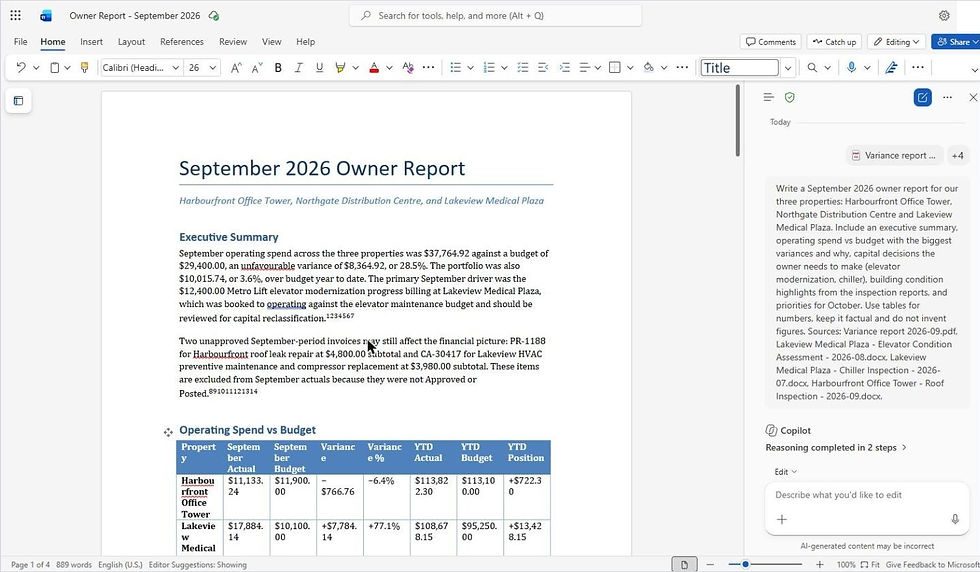
The numbers matched our source files to the cent: $37,764.92 actual against a $29,400 budget, the $12,400 elevator billing flagged as probably capital, and the $8,780 of invoices still waiting for approval.

Step 3: Turn the report into a deck
Open the blank PowerPoint file, open Copilot, and attach the Word report you just made:

Create a 7-slide owner presentation from Owner Report - September 2026.docx for the property owner. Slides: title, September at a glance, spend vs budget by property (as a table), the three biggest variances, capital decisions needed (elevator and chiller), building condition highlights, and October priorities. Keep the numbers exactly as in the document and keep text short.The first version was correct but plain white. One follow-up prompt fixed that:
Make the deck look polished and modern: a clean navy and white theme, a bold title slide, simple icons on the capital and priorities slides, and highlight the portfolio total row in the table. Do not change any numbers.Here's the result:

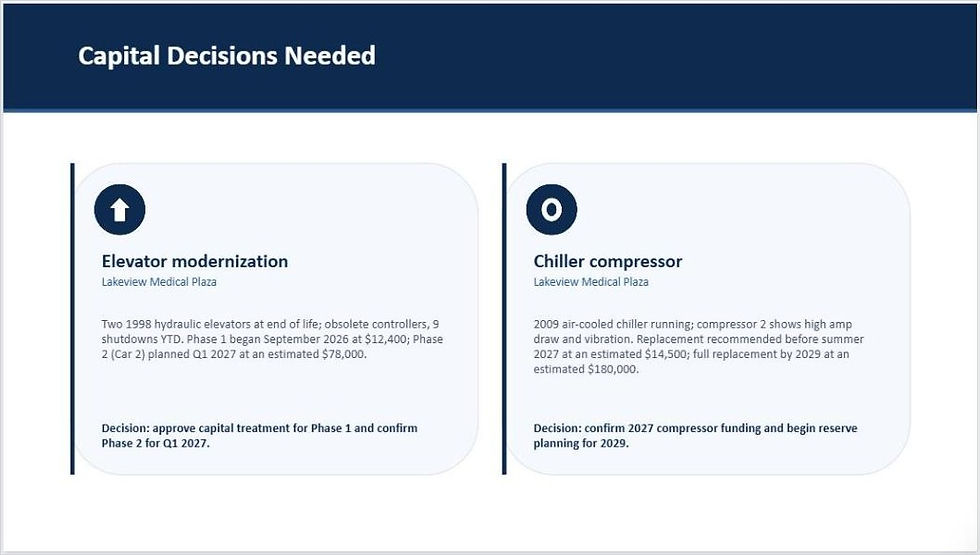
The capital decisions slide is the one owners will actually discuss:
The part that impressed us
We only gave Copilot inspection reports for two of the three buildings. Instead of making something up for Northgate, it wrote: "No September building condition inspection report was provided for this property", and added a Northgate condition inspection to the October priorities. That's exactly what a careful analyst would do.
It also caught that the elevator billing should probably be capital, not operating, because the elevator assessment said so. Two documents, one conclusion, and nobody had to connect them by hand.
A quick game: spot the owner question
Owners always ask the same three questions in the meeting. Before you read our answers, guess which slide answers each:
"Why are we 28% over budget this month?"
"What do I need to approve?"
"Is anything about to break?"
Ours: slide 4 (one elevator invoice explains most of it), slide 5 (elevator Phase 2 and the chiller compressor), and slide 6 (the roof parapet and the chiller). If your deck can't answer all three, your prompt is missing a section.
Lessons from the build
Attach the files, don't paste them. Add content keeps the source names in the conversation, so you can see exactly what Copilot used.
Copilot rereads its work. In Word, the last step before it finished was "Checking my work". Give it the two minutes instead of stopping it early.
Read the reasoning, not just the result. One sentence in our first draft compared the month "excluding that invoice". It was correct, but worth a second look before the owner sees it.
Keep the Word report. The deck is for the meeting. The report is the record, and next month you can ask Copilot to compare the two.
Ideas to take it further
Add your own template: start the deck from your company's branded PowerPoint template so every month looks the same.
Run it every month: pair this with the variance agent so the variance report and the owner report land on the same day.
Add a photo page: attach site photos from the inspection folder and ask for a one-page photo summary.
Ask for the email too: have Copilot in Outlook draft the cover email to the owner from the Word report.
Why this matters
An owner report is only as good as the data behind it. When the variance report, the inspections and the invoices live in different places, someone spends a day stitching them together. Bring your data from different systems into one place and put AI in front of it, and Copilot does the stitching in minutes, while your team spends its time on the decisions the owner actually needs to make.
Need help?
Smart Solutions sets up Microsoft 365 Copilot, SharePoint and finance reporting for Canadian property and facilities teams, from clean data to automated month-end packages. If you'd rather have purchase orders, invoices and budgets in one product, take a look at ProcuraCloud, our procurement platform for small and mid-sized businesses. Contact us to talk about your owner reporting.


Comments