
Budget Variance Comments Written by AI: A Copilot Studio Agent for Month-End
Every month the same email arrives from finance: "Can you explain the variances over 5%?" Someone opens the GL detail, scrolls through invoices, and writes a line for each one. Elevator over budget? Must be the modernization. HVAC under? Probably an invoice that hasn't landed yet. It's skilled work, it's tedious, and it's the reason month-end reporting is always late.
In our Copilot in Excel post we found the big variances in three prompts. In this guide we go one step further: a Copilot Studio agent reads actuals and budgets for every site and GL code, writes the variance comment for each line the way a finance analyst would, saves everything to SharePoint, produces a PDF report and emails the finance team.
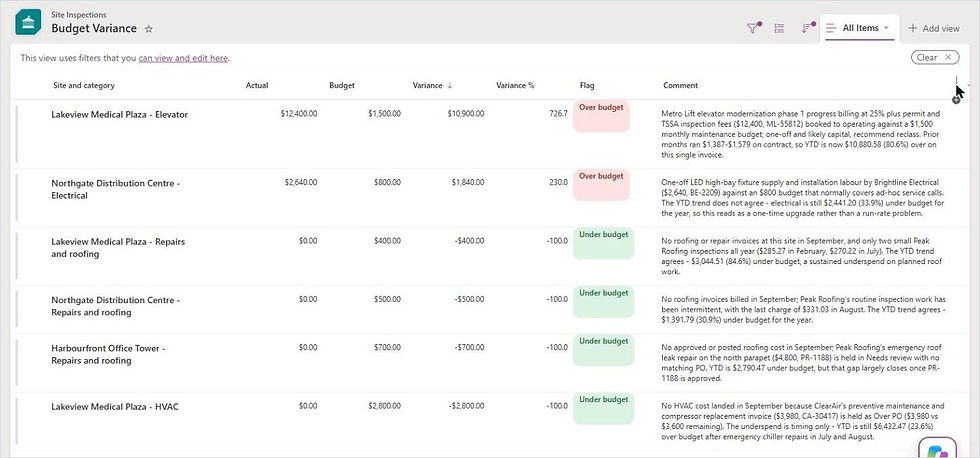
Here's what the agent wrote for September:
What you'll build
A Site Budgets list: one row per site, GL code and month.
A Budget Variance list: one row per site and GL code each month, with actual, budget, variance, a flag and a comment.
A Budget Variance Agent: it reads the invoices and budgets, does the arithmetic, and explains every variance using the invoices behind it.
A monthly workflow: it runs the agent, saves its report as a PDF and emails the same report to finance from the shared mailbox.
What you'll need
The AP Invoices list from our invoice approval guide, with a GL code and status on every invoice.
A budget by site, GL code and month. We loaded ours into a SharePoint list.
Copilot Studio with Copilot Credits, and OneDrive for Business for the PDF conversion.
Step 1: Put the budget next to the invoices
The agent needs actuals and budget in the same place, at the same level of detail. Our Site Budgets list has 240 rows: 3 sites, 7 GL codes and 12 months, including seasonal amounts. Snow clearing costs more in winter and HVAC more in summer, and the budget says so.
If your budget lives in Excel, that's fine too. The agent just needs to be able to read it, and SharePoint lists are the easiest thing for it to read.
Step 2: Create the agent
In Copilot Studio, create an agent called Budget Variance Agent and give it two SharePoint tools, exactly like our client billing agent:
Read list items: Get items on the Site Inspections site, with the agent choosing the list.
Create variance line: Create item on the Budget Variance list, with every column filled by the agent.

The instructions are where the finance knowledge lives. The rules that mattered most:
What counts as actual: the subtotal before tax, for invoices that are Approved or Posted. Invoices still in review are left out but mentioned as "spend that may still land".
What counts as a variance: more than 5% and more than $250 either way. Everything else is On budget, so nobody wastes time explaining $40.
How to write a comment: two sentences at most, naming the vendor, what the invoice was for, whether it's one-off or recurring, and whether year to date agrees.
Honesty: never invent a reason the invoices don't support. If it's unclear, say "No single driver; review with site manager."
We gave the agent two example comments in the instructions. That one change made the tone go from chatbot to finance analyst.
Step 3: Build the workflow
The workflow has six nodes:
Start: a manual trigger with one input, Period. Swap it for a monthly Recurrence trigger later.
Explain variances: an Agent node calling Budget Variance Agent with the message "Prepare the budget variance report for" plus the period. Output is a Text response: the agent's whole reply is the HTML report.
Save report as HTML and Convert to PDF: OneDrive for Business Create file, then Convert file.
Save to Variance Reports: SharePoint Create file in a Variance Reports folder.
Email finance: Send an email from a shared mailbox, with the agent's reply as the body.

Step 4: Run it
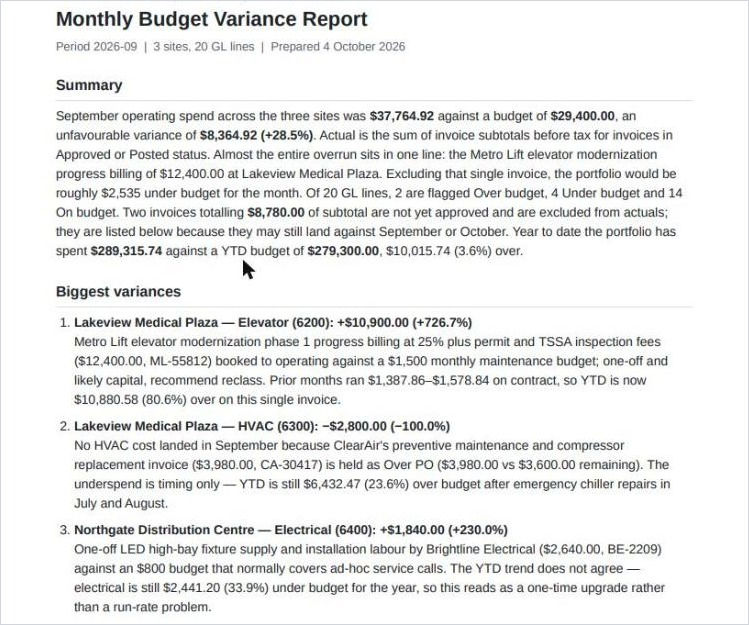
We ran it for September 2026. In about four minutes the agent read 162 invoices and 240 budget rows, created 20 variance lines, and flagged six of them. Here's what it found, in its own words:
Lakeview elevator, $10,900 over: "Metro Lift elevator modernization phase 1 progress billing ... booked to operating against a $1,500 monthly maintenance budget; one-off and likely capital, recommend reclass."
Northgate electrical, $1,840 over: a one-off LED fixture upgrade. The agent pointed out that electrical is still under budget for the year, "so this reads as a one-time upgrade rather than a run-rate problem."
Lakeview HVAC, $2,800 under: "The underspend is timing only." The September invoice is held as Over PO, and the year is still 23.6% over after the summer's emergency chiller repairs.
Harbourfront roofing, $700 under: the emergency roof repair is waiting in Needs review, so "that gap largely closes once PR-1188 is approved."
We checked every number against our own calculation. They all matched, including the $37,764.92 total, the $8,780 of invoices still waiting for approval, and the year-to-date figures in the comments.
The same report lands in the Variance Reports folder as a four-page PDF:
And in the finance team's inbox:

The part that impressed us
Look at Lakeview HVAC. A simple formula says $2,800 under budget, good news. The agent said the opposite: the invoice is stuck in approval, the year is over budget, and the summer was expensive. That's the comment a good analyst writes, and the one a formula never will.
It also caught that the $12,400 elevator invoice is probably capital. That's exactly what we said Copilot in Excel couldn't tell you on its own.
A quick game: explain it in one line
You're the analyst. Write the one-line comment for each before you read ours.
Snow clearing is 60% over budget in February.
Security is 12% over for three months in a row.
Cleaning is 2% under.
Ours: "Storm in February; extra hauling invoice from GreenScape, one-off." "Guardian Patrol rate increase from July; recurring, update the forecast." And the cleaning one needs no comment at all. Under 5% is noise, and the agent knows it.
Lessons from the build
Keep the output simple. We first asked the agent for a JSON object with the report, the email and a count, and used Structured output in the workflow. The agent did the work perfectly, but the 10,000-character HTML report never made it through the parser, and our first PDFs just said "null". Asking for the HTML report as the whole reply, and using it for both the PDF and the email, fixed it on the next run.
Agents like to report back. Even when told to return only the report, the agent opened with one line saying the lines already existed and its recalculation matched. We kept it. It's exactly what a reviewer wants to know.
Keep duplicates out. The agent checks the Budget Variance list first, so running the same month twice doesn't double up.
Thresholds are a finance decision. 5% and $250 worked for us. Agree yours with the controller before you go live.
Ideas to take it further
Run it on business day 3: a Recurrence trigger with last month as the period.
Ask the site manager: for any line that says "review with site manager", send an Approvals request and save the answer as the comment.
Forecast the year: add a full-year forecast column and have the agent flag lines that will finish the year over budget.
Send the owner report: combine this with the billing and AP posts into a monthly owner's package.
Why this matters
Variance commentary is where data turns into a story someone can act on. It only works when the invoices, the budgets and the approval status sit in one place. Bring your data from different systems into one place and put AI in front of it, and the agent can read every invoice, do the arithmetic and draft the story, while your team reviews six comments instead of writing twenty.
Need help?
Smart Solutions builds Copilot Studio agents, Power Automate flows and finance reporting for Canadian property and facilities teams. If you'd rather have purchase orders, invoices and budgets in one product, take a look at ProcuraCloud, our procurement platform for small and mid-sized businesses. Contact us to talk about your month-end.


Comments